Once you know to turn on Track Changes in Word before you edit, you’re ready to start refining their use. These refinements will make it easier for everyone involved to see what changes were made and to accept those suggestions with a minimum of effort.
Dos and Don’ts

In the examples below, the traditional markup settings in Word have been recreated: red strikethrough means it was tracked as a deletion, and red underlining means it was tracked as an insert. How this looks in your Word files may differ as these are user settings.
1. Don’t replace whole words when changing only a single character
Don’t: labelling labeling OR cats cat’s OR (9-10 cm) (9–10 sm)
Do: labelling OR cat‘s OR (9––10 cm)
Thoughts: Comparing each word letter by letter to figure out what was changed is cumbersome, to say the least. Small discrete changes won’t be missed when using the “next change” button on the Review ribbon to navigate through the changes!
Pro Tip: If the change is tiny but significant (like sylphon, for example), add a Comment (a button on the Review ribbon) to ask “Change ok?” Regarding that final example of changing a hyphen to an en dash, see point #3.
2. Don’t replace each word in a sequence separately
Don’t: are have roiling also been with in pain discomfort
Do: are roiling with painhave also been in discomfort
Thoughts: It’s hard to read the resulting phrase in the don’t example, and it will require 8 clicks to accept or reject those changes. The do example takes only 2 clicks to accept. Within the do example, it’s still possible to select any individual word and accept/reject that part alone, but the default makes it easy to accept the whole suggestion.
3. Don’t track inconsequential or non-negotiable changes—make such changes silently when allowed
Don’t: winner‘s OR in –between OR This or Tthat
Do: winner’s OR in between OR This or That
Thoughts: Reserve the tracking to draw attention to meaningful changes and don’t swamp the author in a sea of tracked italicizing, deleting of double spaces, and non-negotiable matters of house style (such as capitalization patterns for headings).
Pro Tip: The Track Changes button is a toggle, activate it again and it turns off. There are keyboard shortcuts and buttons to switch between on and off states easily. If you forget to not track a change, just select the words and accept the change.
Better yet, when running macros or plug-ins (i.e., a focused editing sweep), change the user name so those changes are tracked as “per publication style” or whatever label is appropriate. This lets all the changes be tracked yet allows hiding that particular “redlining” (“by reviewer” in the Tracking Preferences) as well as making it possible to accept all those non-negotiable changes in a single click.
4. Don’t retype the original when you change your mind—undo or reject the change instead
Don’t: catscats
Do: cats
Thoughts: For the one reviewing the tracked suggested changes, it’s annoying to have to spend time on these and can lead to a loss of confidence in the editor.
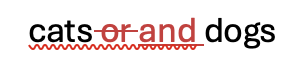
5. Don’t ignore the red squigglies
Don’t: cats or and dogs OR sentence. ends.
Do: cats or and dogs OR sentence ends.
Thoughts: Extra and missing spaces or punctuation easily sneak in around tracked changes. Word’s spellchecker often marks these as “misspellings.” Here is what that looks like in Word:
6. Don’t forget to look it over in “final” view
This helps spot the extra and missing words and characters, as well as showing lists and paragraph breaks without visible display glitches common in a marked up view. Word often changes what this display is called. Your version might say “no markup.” Note that it just changes the display, all tracking remains. Read more on the “view” options for Track Changes.
Practice It!
For guided practice using Track Changes, try this exercise.
Photo of boats stranded at low tide by Peter Day from Pixabay.