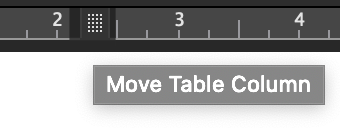
This is as simple as select, click, drag, release. To rearrange columns and rows, just select the row or column and then drag it where you want. Release the mouse to place the contents. Watch the demo below to see some of the snafus in action, as well as how to avoid them.
Troubleshooting
Click and drag too finicky? Page scrolling out of control? Use cut and paste instead. Cut the entire column or row, then place the cursor where you want to insert the text — be sure it’s at the beginning of the text in the first cell of that row/column — and then paste.
Merged cells (like spanning heads) can wreak havoc. Try inserting a blank row/column and move the selection there, then erase the blank.
If you’ve found this series on editing tables helpful, try our course! The course includes a downloadable resource with all the information in one, updated ebook and extra demos, plus you’ll get exclusive access to a checklist for quality control and a self-check exercise with answer keys for various style guides.
Formulas are built right into Word, so you can check totals with a click! Errors love to lurk in tables, checking the numbers can make an editor look like a hero. Just click the Formula icon on the right edge of the (Table) Layout ribbon. But watch for the snafus (see Troubleshooting).
Troubleshooting
Address most of these issues by pasting the table into Excel and using its more sophisticated formula functions.
The “ABOVE” parameter stops at empty cells, as shown in the demo. It’s possible to specify a row range instead e.g., 3:11) but it’s unclear how Word numbers the rows.
With this post, our series on working with tables in Word moves into more uncommon situations. For this post, we will again talk about documents that are being finalized in Word — without moving the manuscript into a design program — as is often the case with internal reports and proposals.
Tables longer than one page usually need to have their column headings repeated on every page. Word can do this automatically! And Word will keep those headings at the top of each page even as you manipulate the table contents and structure.
How to Make Table Headers Repeat
Watch the video demo below, or follow these steps:
At any point in the creation of the table, select the rows you want to repeat, then click the Repeat Header Rows icon in the Data group at the right end of the (Table) Layout ribbon.
Alternatively, select the header row(s), then click the Properties icon on the (Table) Layout ribbon to open the Table Properties dialog shown below. On the Row tab, check the box that says “Repeat as header row at the top of each page.” Then click OK.
Troubleshooting
When a table is set to have text wrap around it, the header will not repeat on subsequent pages. On the Table tab in Table Properties (shown above), make sure that Text Wrapping is set to None, not Around.
In the first post in this series, we learned how to convert a manual table to a true table. After examining seven other aspects of tables, it’s time to look at the reverse: converting a table into simple text. There’s no need to click and drag contents out of their individual cells, Word will convert it with just a couple of clicks:
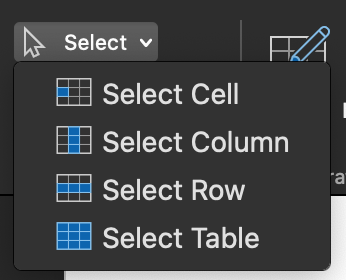
Or, use the Select icon on the (Table) Layout ribbon.
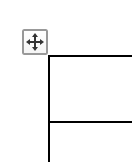
The grab point pops up when the cursor is in a table.
Hover the mouse pointer over the table until the grab point pops up at the top left corner, then click it. Or click anywhere in the table and then click the Select icon on the left edge of the (Table) Layout ribbon and click Select Table.
On the Layout ribbon, look in the Data cluster at the right edge and click the Convert to Text icon. From there you can tell Word whether to separate the text using tab marks, paragraph marks, or some other mark you specify, like perhaps a semicolon.
Troubleshooting
Keep a copy of the original so you can check that the content is still in the right order.
You may have to delete empty lines and do a little more consolidation after the conversion.
There are several easy
ways to add or delete columns and rows in tables within MS Word:
Right-click and select from the context menu.
Select from the icons on the (Table) Layout Ribbon.
Select the row/column and cut it using ctrl + X (cmd + X on a Mac).
Select the Eraser icon on the (Table) Layout Ribbon and drag it over the undesired elements.
And, if all you want to do is add a row: place the cursor outside the end of the row, then press Enter.
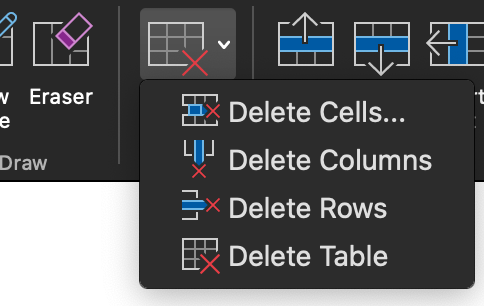
This Layout ribbon appears when the cursor is placed in a table. Use the icons in the Rows & Columns group on the left to add table elements. Click the Delete icon to expand its options.
Click the Delete icon to expand its options.
Check out the demo video below to see these methods in action.
Left and right alignment aren’t going to cut it when aligning numbers in tables. Best practice to align numbers on the decimal. Aesthetics dictate that the numbers also be centred. Tab settings make this process elegant, and the ruler makes it intuitive. See it in action in the demo video at the end, and read the steps below.
Select the cells whose contents you want to align by clicking and dragging across them.
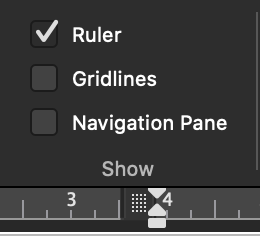
On the ruler (revealed via the View ribbon), click the left corner edge several times to change the tab mark selection to “decimal align” (the up arrow on a point, shown at right).
Click on the ruler to place the tab.
Click on the tab mark and drag it along the ruler to adjust its placement.
Word is not a layout tool, but sometimes, it is what you have to use. Compositors also appreciate having table formatting close to ideal, so editors end up tweaking alignment frequently.
While most publishing production flows want the simplest of tables in a manuscript, sometimes Word is the design software. We see this often when creating documents for in-house use only — such as reports and proposals; these are often produced entirely in Word. So here is how to make sure the table behaves the way you want it to on the page, overall.
The primary methods are shown in the video demo at the bottom of this post are:
Dragging
Setting properties
Setting paragraph alignment
Drag the Table
Hover the cursor over the table to reveal the grab point on the top left corner (shown at right). Click that to drag the table anywhere on the page.
This method is particularly useful for moving a table closer to its reference in the text or placing it outside the margin of the body text.
Setting Properties
With the cursor placed anywhere in the table, select the Properties icon on the left edge of the (Table) Layout ribbon.
This new Layout ribbon appears when the cursor is placed in a table.
Then set alignment for the table itself (cell contents are set separately) and whether the surrounding text will wrap around the table border or split above and below the table. Click OK.
This Table Properties dialog box can be opened by right-clicking on a table, as well as by selecting the Properties icon from the (Table) Layout ribbon.
Setting Paragraph Alignment
Rather than selecting the Alignment for the table in the Table Properties, you can simply click the left, center, or right align icon on the Home ribbon, if the whole table is first selected. These icons set alignment for cell contents if only the cells are selected, not the whole table.
In the Paragraph group on the Home ribbon, you can set which page margin a table aligns to, if you first select the whole table.
Sometimes column edges don’t align. There are a number of ways this can happen. Sometimes fixing it is easy, and occasionally, its the very opposite of easy. To make this task easier, be sure that the cell borders are visible, then try the fixes shown in the demo video at the end of the written instructions.
Drag the edges of the cells
The resize cursor.
With no table contents selected, hover over the border between cells until you see the “resize” cursor (shown here).
Click and drag either until the cell borders line up or until it snaps to a location. Sometimes it’s not possible to make the edges line up exactly on the first try, but now you can select the other misaligned part and snap that border to the same point as the first.
From then on, the edges you’ve aligned should move as one entity.
Drag the markers on the ruler
On the View ribbon, select the Ruler option.
Click in the cell you want to change.
On the ruler, click on the gutter marker between columns and drag it to the desired location.
Grab the gutter marker on the ruler to resize columns.
Troubleshooting
If a row is shorter than the others, it will not behave well. Split cells or recreate the row so that the right and left edges align with the table. (Shown in the video demo below.)
Sometimes, it feels impossible to get cell borders to align so that they create a single smooth column. The fastest fix is to insert a new row and drag the contents over, then delete the problematic row. Do watch out, though: deleting problem areas can “move contents up/left” in a way that messes up the rest of the table. On rare occasions, creating a fresh table and transcribing contents (via click and drag) is the fastest method.
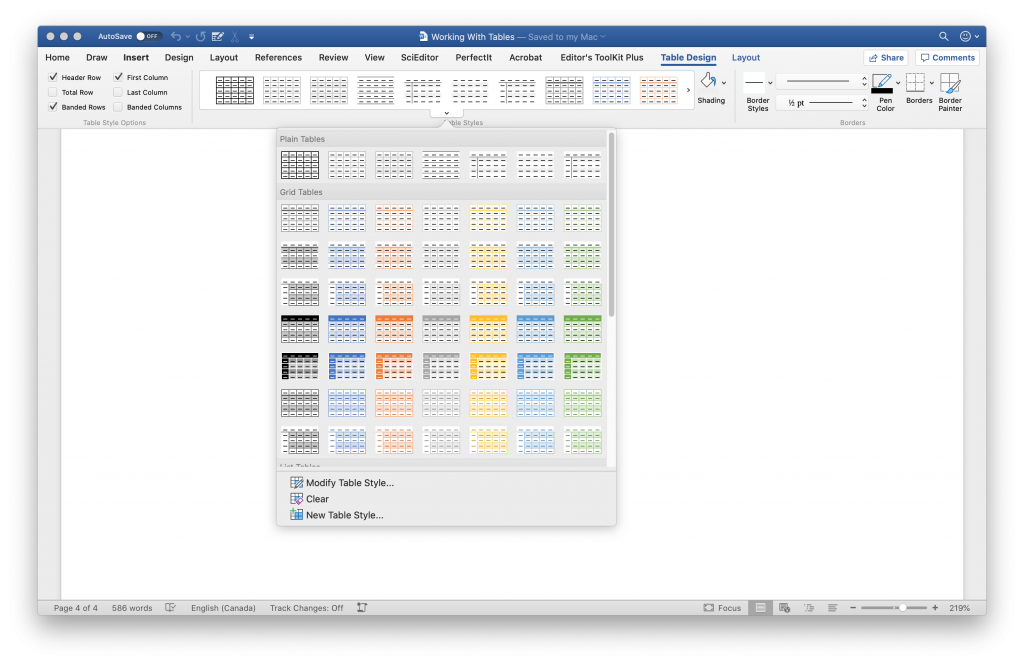
Place the cursor within a table in Word and a Table Design ribbon will appear (shown below). In the middle of that ribbon, you can choose from dozens of looks for the table. Most publishing workflows ask for simple tables with minimal “design” to them. Most style guides prefer the least possible formatting, barely even borders or “rules”. So we’ll focus on working within those parameters.
Access this panel of design options for your table by clicking the arrow at the bottom right of this group on the ribbon (in Windows) or hovering over the middle of the group and clicking the arrow tab that pops up (Mac).
If, instead, Word is the design tool (common for internal office reports and proposals, for example), start by selecting one of the options on that ribbon that fits the design specs; most likely, pick an option that from the design “theme” of the product. After that, the rest of this post applies to you, too.
Use Styles for Contents
The problem with changing the font and alignment of table contents is that if the cell contents are still set to Normal style, you’ll lose all that manual finessing the second any change is made to Normal (such as changing the alignment or first line indent) or if Normal style is “reapplied” somewhere in the document. It’s better to set table contents in their own style. So, select the whole table and create a new style for Table body, Table heads/stubs, and any other style it needs to use.
Then, you can set attributes for the table contents such as a smaller hanging indent for bullets or smaller font size by modifying each of those Styles.
Set the Borders
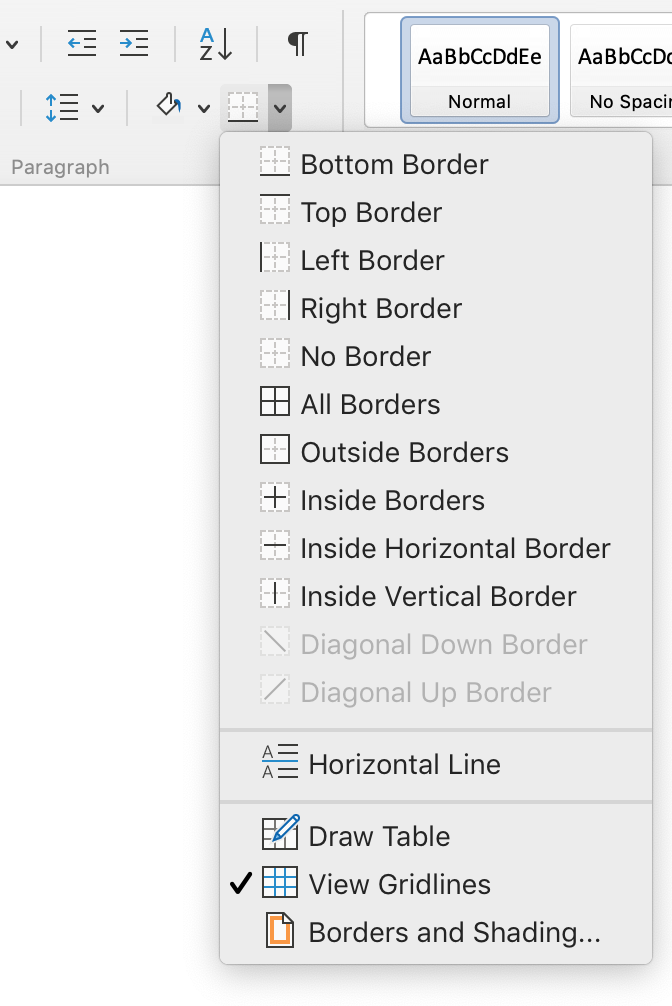
On the Table Design ribbon, click the Borders icon at the right edge and apply borders (rules) to the rows and columns according to your document’s requirements. Pay attention to which cell the cursor is in, as borders are applied to that cell only. To apply borders to a whole column or row, select it first.
To Indent Cell Contents
To manually indent table contents or insert a tab space within a table cell, hitting the tab key doesn’t work. That just jumps the cursor to the next table cell! To indent contents of a cell, either move the slider on the ruler or hold down the option key, then hit the tab key. (Windows users should hold the alt key then press tab.)
Set Alignment of Contents
Left, right, or centre alignment of table contents can be set from the Home ribbon, as with any other content. It’s also possible to set margins, an indent, a hanging indent, and more on the ruler. Just drag the related element (discussed in a coming post).
To align numbers, it’s most useful to use the “align on decimal” option on the ruler.