
Download and print this single page in full colour to make your own EIW ornament.
Continue reading Show Off Your Word Skills with This DIY OrnamentCategory Archives: Word-Wrangling Wednesdays
Using Tabs Effectively in Word Manuscripts
That little tab key on your keyboard is excellent for moving between table cells or elements on a form. It can be used to align decimals in a list, and to create blank lines on forms. But never, NEVER, use tab marks instead of format settings. First, here’s how to reveal the tab marks.
Never use tabs to

- manually align paragraphs or table elements
- indent the first line (set the style instead)
- create hanging indents (use the ruler or a style instead)
- manually number and align lists (use the numbered list style available in literally any program in which you type text, other than social media)
- manually create a table (convert that now)
Why you should never use tab marks
Tab marks don’t let text reflow when anything changes! Someone will have to manually realign everything if they change the font type, font size, page/column margins, or even punctuation.
Use tabs marks to
On the rare occasion, tabs are great layout aids. But if you’re typing a tab mark mid sentence, or using more than one tab mark, you’re most certainly doing it wrong and creating headaches for everyone down the road. The best use of tab marks are to:

- align decimals vertically
- create a blank for writing (use the line leader)
- right-align page numbers in a table of contents (use the right tab mark!)
Get a free booklet on working with tables, which addresses many of these tab uses and abuses.

Got a gnarly Word problem? Submit your problem and we’ll try to answer it in the Q&A thread.



Learn with us! Join a course today.

© This blog and all materials in it are copyright Adrienne Montgomerie on the date of publication. All rights reserved. No portion may be stored or distributed without express written permission. Asking is easy!
Q&A: Grammar Check is Greyed Out!
QI’m using MS Word for Mac, Office 365 subscription, and for some reason grammar check is greyed out. I can’t figure out how to turn it on. Any ideas? Google search just tells me to put in on in the preferences, but that is where it’s greyed out. The language is set for English (US), so it shouldn’t be that. Thanks!
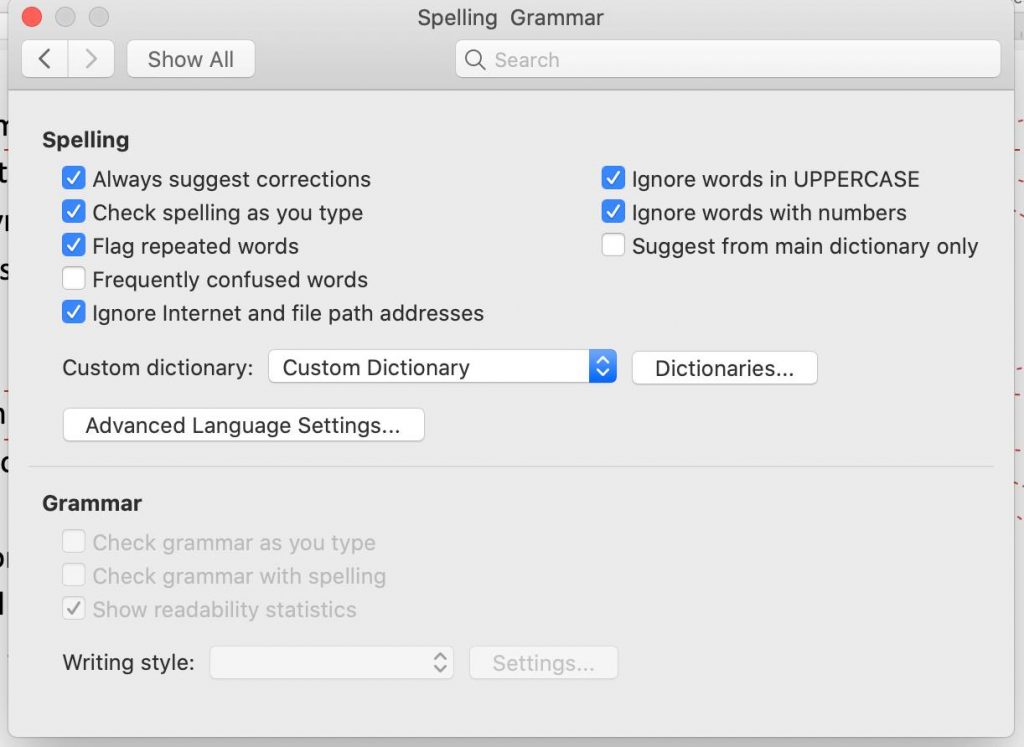
ACheck the language settings in the Style setting of that text. If it is set to a language whose dictionary is not installed, the Grammar check options won’t be available.

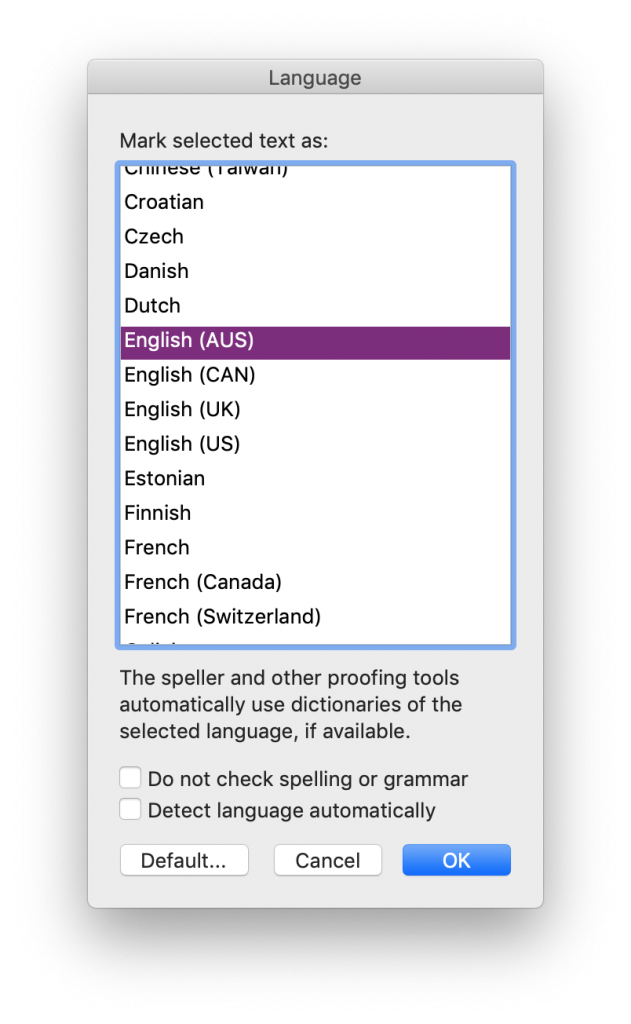
While the grammar checking aspect of the (newly termed) Editor is improving, one of the most useful aspects of this tool is the reading level assessment (readability statistics) it can provide at the end of the process. For more on reading levels assessments, see this other blog post.
Troubleshooting
Check all of the styles used in the document.

Be sure to click on the desired language and click OK. Just because it’s listed at the top doesn’t mean that a language is selected.
In the Style’s settings, ensure that the “Do not check spelling and grammar” option is NOT checked off/ticked/selected.
Save and close the document if this change doesn’t work at first. Close and reopen Word, too.
Got a gnarly Word problem? Submit your problem and we’ll try to answer it in the Q&A thread.
Learn with us! Join a course today.
© This blog and all materials in it are copyright Adrienne Montgomerie on the date of publication. All rights reserved. No portion may be stored or distributed without express written permission. Asking is easy!
Delete All Images from a Word Document

Images can be integral content in a manuscript: graphs convey huge volumes of data and information about their relationships; flowcharts relay sequences and relationships; pictures convey context and describe scenes. Images need to be seen while developing a manuscript or reviewing one, because they are so important. But images can also make files enormous to the point of crashing Word or email. Rather than deleting images one by one so that you can work with the file, delete them all at once with this simple Find and Replace in the Find/Navigation panel:
Continue reading Delete All Images from a Word DocumentTurbo Boost Manuscript Styling with This Simple Macro for MS Word

Styles have many wonderful uses, so it behoves any editorial process to use them. We’ve looked at several ways to apply styles, now we’ll look at a macro that will apply several styles in one click!
Continue reading Turbo Boost Manuscript Styling with This Simple Macro for MS WordReject Tracked Changes Cleanly

Every time you replace a word (or words) in MS Word using tracked changes, Word annotates two changes: a deletion and an insertion. To reject a change and reinstate the original, you have to reject BOTH changes.
Two Ways to Reject Tracked Changes
Continue reading Reject Tracked Changes CleanlyQuick Tricks for Applying Styles to Word Documents
Styles are applied to many good ends, in Word: production workflow, ebook coding, and making restructuring easy, to name a few. There are several easy ways to apply styles, too!
- Styles area of the Home ribbon
- Styles panel
- Format painter
- Keyboard shortcut
Google Docs, Meet Word
When editors work in Word, they have access to many customizable tools and advanced features that make their work more consistent and faster:
- Customizable and importable dictionaries
- Plug-ins
- Macros
- Styles
- Wildcards
- And every hack in the book
Import–Export Handshake

The good news is that Google Docs plays well with Word, now. The bad news is that this requires you to (and only works if you do) export the document into a Word file, work on it, and then re-upload it to Google Docs when you are done.
I’ve let a couple of my editing students use it (for reasons) and am thrilled to find that Google Docs now produces great markup of the Tracked Changes and Comments when it makes a Word file. It also maintains my markup and comments from Word when I reupload it to Google Docs!
I still do better, faster editing work by using all my macros, plug-ins, and dozens of other customized tools in Word, so this compatibility is very hopeful news.
Markup Using Google Docs
The Suggesting feature in Google Docs marks up text much like Word does with Track Changes and Comments. The reason you want to use this is not only so that the changes stand out for review and can be easily accepted or rejected and so that comments are easy to find. More importantly, by leaving “suggestions” and tracked changes, you avoid having your comments and other infelicities end up in the final product because someone missed deleting them! This has happened many times and it is always an enormous embarrassment as it’s shared widely across the internet.
In Google Docs, click on the speech bubble icon at the top right of the screen. This opens the small menu shown in the image below. Click the Suggesting option to turn on the tracking mode. Then, type additions and delete text without further concern—they will be tracked. Add comments by clicking the speech bubble icon with the plus—the one just to the left of the pop-down menu in the example below.
Troubleshooting
Do not let the writer keep working on the Google Doc while you are editing in Word. These are now two separate versions of the file—the on in GDocs and yours in Word—and their changes will not be incorporated into your edits. You’ll be uploading a new version, separately, since you can’t upload–convert into an existing Google Doc. Ideally, you will lock the old Google Doc from further changes.
At minimum, add in a very large, colourful font at the top of the original Google Doc reading: DEAD FILE. Changing the colour and font family of the body content would also give visual signals that it is not the file to work on. Also change the doc’s name to include the words dead file.
While you might be frustrated by the seemingly endless updates (changes) to Microsoft products, Google Docs updates even more often. So what I say here may be out of date by the time you read it. So far, Google Docs keeps getting better and more functional. So let’s hope that’s what you find.
Styles and internal cross-references do not get carried over elegantly from Word to Google Docs. Just be aware of this, and plan on fixing the flubs in production/layout.
Erin Brenner of Right Touch Editing recently described her method of editing in Google Docs and limiting the pitfalls of working in a live document within GDocs, separate from Word. Check out her advice.
Got a gnarly Word problem? Submit your problem and we’ll try to answer it in the Q&A thread.
Learn with us! Join a course today.
© This blog and all materials in it are copyright Adrienne Montgomerie on the date of publication. All rights reserved. No portion may be stored or distributed without express written permission. Asking is easy!
Delivery image modified from original base image by mohamed Hassan on Pixabay.
This PDF Hack Accesses Your Word Wizardry

Missing all your Word tools because you’ve got a PDF to mark up? Never fear!
Open Word, then tell Word to open the PDF file. It’s that simple. Word will import all of the text and graphics so you can access your macros, plug-ins, and other secret Word weapons to proofread the content. No need to pay for any third-party translation or shell out for Acrobat Pro! Word has you covered.
Any changes will have to be transcribed onto the PDF, not simply tracked in the Word file; but that’s easy. This quick tutorial shows how to leave professional proofreading markup using the industry standard free software: Adobe Acrobat Reader.
Troubleshooting
Bad breaks or false ones may occur at the bottom of pages where footers including folios are set in text boxes. Some body text and captions may also appear in text boxes. Be sure Word is including such text in any checks, and be prepared to excuse layout weirdness. You’ll have to check design elements on the PDF itself.
If there’s any markup on the PDF, Word will try to replicate it, too. Just be aware of it so you can ignore those sections.
Got a gnarly Word problem? Submit your problem and we’ll try to answer it in the Q&A thread.
Learn with us! Join a course today.
© This blog and all materials in it are copyright Adrienne Montgomerie on the date of publication. All rights reserved. No portion may be stored or distributed without express written permission. Asking is easy!
Q&A: Easy selecting in tables, 5 ways
Q Is there a sure-fire way to select just the content of a table cell, or a single cell vs the whole table? Word seems to have its own views on what I should be selecting.
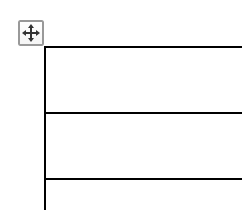
A Arrow keys are the most precise way to select text or cells (even rows and columns) in a table, but double-clicks and triple clicks are great shortcuts:
- Shift + arrow selects individual characters until it reaches the end of a cell, then it switches to selecting whole cells.
- Double-click the mouse to select a single word.
- Triple-click the mouse to select a whole cell.
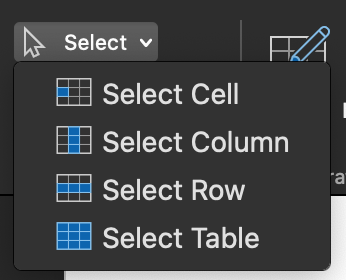
The (table) Layout ribbon offers some selection options. Click the Select icon on the far left. This is great when your hand isn’t feeling steady enough to activate the selection arrow by hovering at the top or left side of the table column/row, or when Word is having a tantrum. Just make sure the cursor is already placed in a cell within the column/table you want to select.
Troubleshooting
To reveal the (table) Layout ribbon, place the cursor in the table. If the ribbon does not appear, you’re not working in a true table. Reveal hidden characters and you’ll likely find that the alignment was forced (faked) with spaces and tab marks. Undo that shit.

If the content you want to select is at the end of a cell, it can be nearly impossible to select just that bit rather than the entire cell. Add a character (say, a period), then select up to that point (which will no longer be the end of the cell). Remember to delete that extraneous mark afterward!
To make sure you’ve selected an entire row (and not just the cells), look for the row end marker selection. See this in action in the demo video below at about minute 1:08.

Got a gnarly Word problem? Submit your problem and we’ll try to answer it in the Q&A thread.
Learn with us! Join a course today.
© This blog and all materials in it are copyright Adrienne Montgomerie on the date of publication. All rights reserved. No portion may be stored or distributed without express written permission. Asking is easy!