Every time you replace a word (or words) in MS Word using tracked changes, Word annotates two changes: a deletion and an insertion. To reject a change and reinstate the original, you have to reject BOTH changes.
Every time you replace a word (or words) in MS Word using tracked changes, Word annotates two changes: a deletion and an insertion. To reject a change and reinstate the original, you have to reject BOTH changes.
Q Is there a way to only accept all formatting changes without accepting moved text? I can’t make it show *only* formatting. I can hide insertions/deletions and “accept all shown,” but that would also accept moves?
A You got it! Just hide all changes except the formatting ones and “Accept All Changes Shown” as shown in the steps below:
Continue reading Q&A: Can I accept only formatting changes?Q Is there a way to get out of a Comment without using the mouse?
Esc, ←

A Yes, press Escape! Keeping your hands on the keyboard is the fastest way to work, and the perfect alternative to a mouse that’s lost its juice.
If all the tracked changes and comments are being shown as being made by “Author”, the document probably has been set to remove all personal data on save. This setting is sticky, so it keeps removing all data upon every save. You have to turn that off to get your name to stick.
Continue reading Stop Word from Stripping Your Name from Comments and ChangesWord used to number comments automatically; you could see those numbers in the comment balloons at the right. Those numbers were handy because they aided cross-referencing and let us refer to specific comments in transmittal memos and other discussions.
Word still numbers comments, but those numbers don’t appear in the balloons in the markup area. Here are three ways to see them: in the Review pane, in Draft view, and by printing a list of markup.
Continue reading Find Comment NumbersUPDATE: Find existing numbers and a better way to cross-reference comments!

Sometimes it’s nice to have comments numbered in a document. That lets you refer to comments by number, which is useful for cross referencing (e.g., “See comment 12 again.”) or for talking about the comments in a transmittal memo, for example. Word used to number comments automatically. It still does, but those numbers are usually hidden. You can see the numbers on comments if you print off the markup, or by looking in the Review Pane. Numbers on comments also reveal themselves when looking at a document in Draft mode.
Modify the style for Comment text, setting the text to automatic numbering:
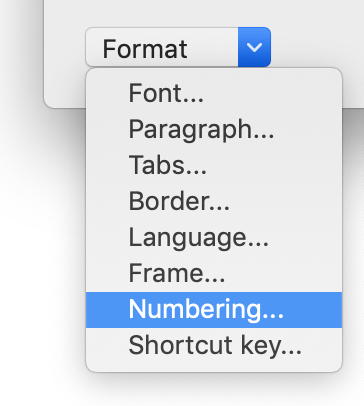
Windows users may find that comment text is styled as Normal instead of as Comment Text. Changing the Normal style will change all text in the document that is set to Normal, and you probably don’t want to do that.
There are two primary snafus to be aware of when using this numbering method:
If your comments contain paragraphs, each paragraph will get numbered. To avoid this, use a “soft return” instead of a paragraph break. On a Mac, do this by holding down shift when you hit return.
Modern Comments is a whole other problem. Revert to manual cross-referencing; it’s a better idea, anyway.
Got a gnarly Word problem? Submit your problem and we’ll try to answer it in the Q&A thread.



Learn with us! Join a course today.

© This blog and all materials in it are copyright Adrienne Montgomerie on the date of publication. All rights reserved. No portion may be stored or distributed without express written permission. Asking is easy!
By changing the style settings of Comment text, you can make the text size bigger, make the lines double spaced, change the font, its colour, or any other attribute.

In the editing process, a “clean” file means it’s a manuscript ready for layout. All changes have been accepted, all comments removed, and the editing work is done. Or, maybe the file is nearly ready for layout and the team wants a version that could be ready if it suddenly must be submitted.
Good news! It just takes a couple of clicks to clean the document of all tracked changes and comments.
Continue reading Clear All Changes and Comments from a DocumentComments posted in a Word document appear on the right, by default, in a region called the Markup Area. But you can have it your way: move those comment balloons to the left, if you want!
Continue reading Make Comments Appear On the Left in Word