Q Is there a way to get out of a Comment without using the mouse?
Esc, ←

A Yes, press Escape! Keeping your hands on the keyboard is the fastest way to work, and the perfect alternative to a mouse that’s lost its juice.
Q Is there a way to get out of a Comment without using the mouse?
Esc, ←
A Yes, press Escape! Keeping your hands on the keyboard is the fastest way to work, and the perfect alternative to a mouse that’s lost its juice.
Macros can do some amazing complex and lengthy tasks in just a click, but you don’t need a macro for everything! Here are four things to try before of creating a macro:
Wide tables and infographics are just two reasons you might want to set a particular page to print in the horizontal, landscape orientation. If you’re preparing a manuscript for professional design, doing this only helps you work with the material. And anything the helps your work is worth doing. But if you’re producing, for example, an internal report entirely within Word, adjusting the page orientation to fit the content is vital.


To prevent the entire file from being set in landscape, first insert Section Breaks. Find this function on the Layout ribbon (see figure). There are many uses for Section Breaks; here we’re just using them to confine the orientation to the desired pages. Select simply Break > Section Break, Next Page from the Page Breaks option in the Page Setup group.
Insert a Section Break both before and after the material that should be set in landscape. Then, place the cursor within that section, and select Orientation > Landscape on the Layout ribbon. That’s it!

Section break markers can get effectively hidden at the bottom of a very full page or even at the end of a line that nearly touches the margin. If you suspect a section break may be causing problems, search for them using regular expressions in the Find and Replace function.

Got a gnarly Word problem? Submit your problem and we’ll try to answer it in the Q&A thread.




Learn with us! Join a course today.

© This blog and all materials in it are copyright Adrienne Montgomerie on the date of publication. All rights reserved. No portion may be stored or distributed without express written permission. Asking is easy!
Call it a glitch, but if you’re missing the horizontal Reviewing Pane option in MS Word on your Mac, you can turn this glitch into a happy hack!
Create a macro for adding a comment and assign a shortcut to it. That’s it. You don’t have to add anything else to the macro. Using the macro will automatically open each new comment in a Reviewing Pane along the bottom of the screen (see figure).
Continue reading Horizontal Review Pane for MacPrevent Find and Replace from turning into “search and destroy” by using the Whole Word Only, option (“Find whole words only,” for Windows users). This feature helps you replace only whole words, and not matching fragments within other words.

By simply selecting Whole Word Only, the software will identify only “man” and not “human“, for example. This helps to avoid replacement errors such as “inclient services” when attempting to replace instances of “patient.”
Continue reading Find and Replace, Not Search and Destroy
You know how to search for exact words and phrases. Add wildcards to your terms and you’ll give Find and Replace a nitro boost!

Find and Replace is both an essential tool in the editor’s toolbox and the source of ruination. (Into every editor’s life, a hilariously bad Replace All will fall.) You can use “regular expressions” to turbo boost your F&R!
Continue reading Regular Expressions Will Turbo Boost Your Find & Replace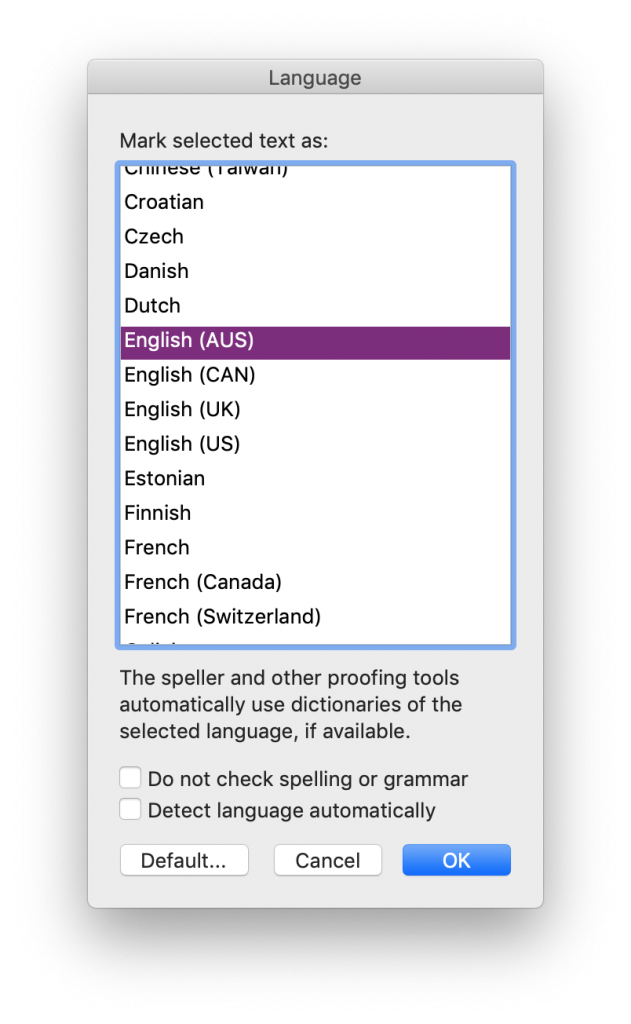
If you are pasting new content into a file, you may have to reset the language for that material as well. It is possible to set a different language for each word in a file, and Word seems to keep the language settings from the source document when pasting content. Sometimes it feels like I am constantly selecting all (⌘ + A) and resetting the language!
Click less when resolving tracked changes with this pro tip!
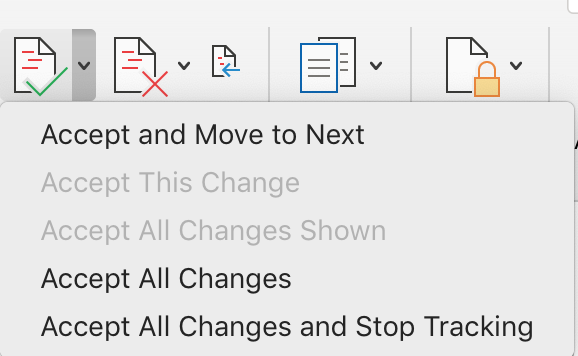
Reject changes you do not like, and leave the rest. That leaves a
document full of changes that you do want to accept. Then, select Accept All Changes from the Review ribbon and clean up the file with a single click!

Always give a document a once-over in Simple Markup or No Markup view before submitting it as a finished edit. This often reveals a bunch of formatting errors that arise from working with markup displayed (that is, with Track Changes visible). Common errors often obscured by the redlining on the screen include: