
Word files can get bloated, taking up far more MB than they should. If you’re dealing with a book-length manuscript full of tracked changes and comments, that bloat can bog down the computer and lead to failures, glitches, and basic Office malfeasance.
Continue reading Shrink Files by Deleting Unused Styles
Q&A: How Can I Cross-reference Comments in Word?
QHow can I cross-reference comments in a Word manuscript now that Word doesn’t show comment numbers?
Continue reading Q&A: How Can I Cross-reference Comments in Word?
5 Ways to Select Big Chunks of Text in a Word Document
Selecting unwieldy content doesn’t have to be a snafu experience.
You know that ctrl + A will “select all” contents of a Word file, but did you know that selecting less — large amounts but not all contents — can be as easy? No need to drag the mouse, jumping unexpectedly and far; it doesn’t have to be a tedious, glitchy, or imprecise experience. Just use one of these methods:
- triple-click
- outline view
- ctrl + shift + up/down arrows
- F8 (4 times)
- zoom out, then select
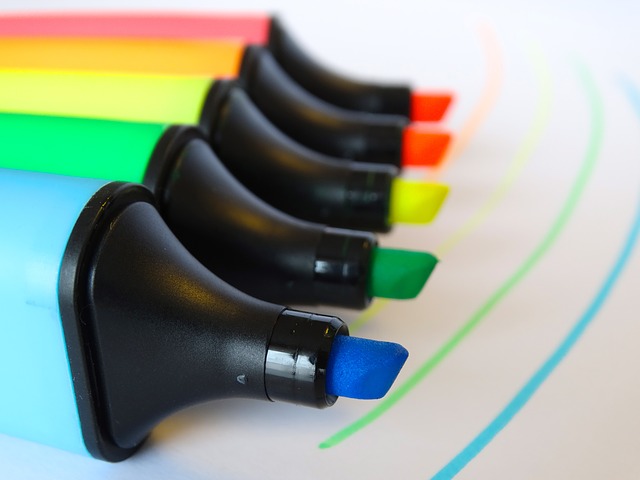
Six Uses for Highlighting in Manuscripts
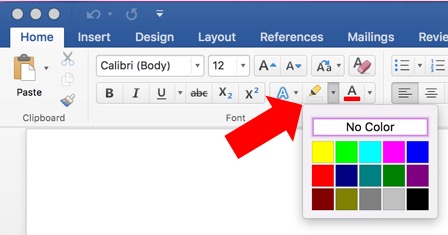
Highlighting jumps off the page as you scroll past, alerting you to content that needs attention. But you can also search for highlighted text, making it a useful “fail safe” (if not entirely safe from failing) as a final check for things left to be done such as fact checking.
Uses for the Highlighter
Highlighting has uses far beyond a study technique. In editing and production workflows, they can be used to
Continue reading Six Uses for Highlighting in Manuscripts
Show Off Your Word Skills with This DIY Ornament
Download and print this single page in full colour to make your own EIW ornament.
Continue reading Show Off Your Word Skills with This DIY OrnamentUsing Tabs Effectively in Word Manuscripts
That little tab key on your keyboard is excellent for moving between table cells or elements on a form. It can be used to align decimals in a list, and to create blank lines on forms. But never, NEVER, use tab marks instead of format settings. First, here’s how to reveal the tab marks.
Never use tabs to

- manually align paragraphs or table elements
- indent the first line (set the style instead)
- create hanging indents (use the ruler or a style instead)
- manually number and align lists (use the numbered list style available in literally any program in which you type text, other than social media)
- manually create a table (convert that now)
Why you should never use tab marks
Tab marks don’t let text reflow when anything changes! Someone will have to manually realign everything if they change the font type, font size, page/column margins, or even punctuation.
Use tabs marks to
On the rare occasion, tabs are great layout aids. But if you’re typing a tab mark mid sentence, or using more than one tab mark, you’re most certainly doing it wrong and creating headaches for everyone down the road. The best use of tab marks are to:

- align decimals vertically
- create a blank for writing (use the line leader)
- right-align page numbers in a table of contents (use the right tab mark!)
Get a free booklet on working with tables, which addresses many of these tab uses and abuses.

Got a gnarly Word problem? Submit your problem and we’ll try to answer it in the Q&A thread.



Learn with us! Join a course today.

© This blog and all materials in it are copyright Adrienne Montgomerie on the date of publication. All rights reserved. No portion may be stored or distributed without express written permission. Asking is easy!
Q&A: Grammar Check is Greyed Out!
QI’m using MS Word for Mac, Office 365 subscription, and for some reason grammar check is greyed out. I can’t figure out how to turn it on. Any ideas? Google search just tells me to put in on in the preferences, but that is where it’s greyed out. The language is set for English (US), so it shouldn’t be that. Thanks!
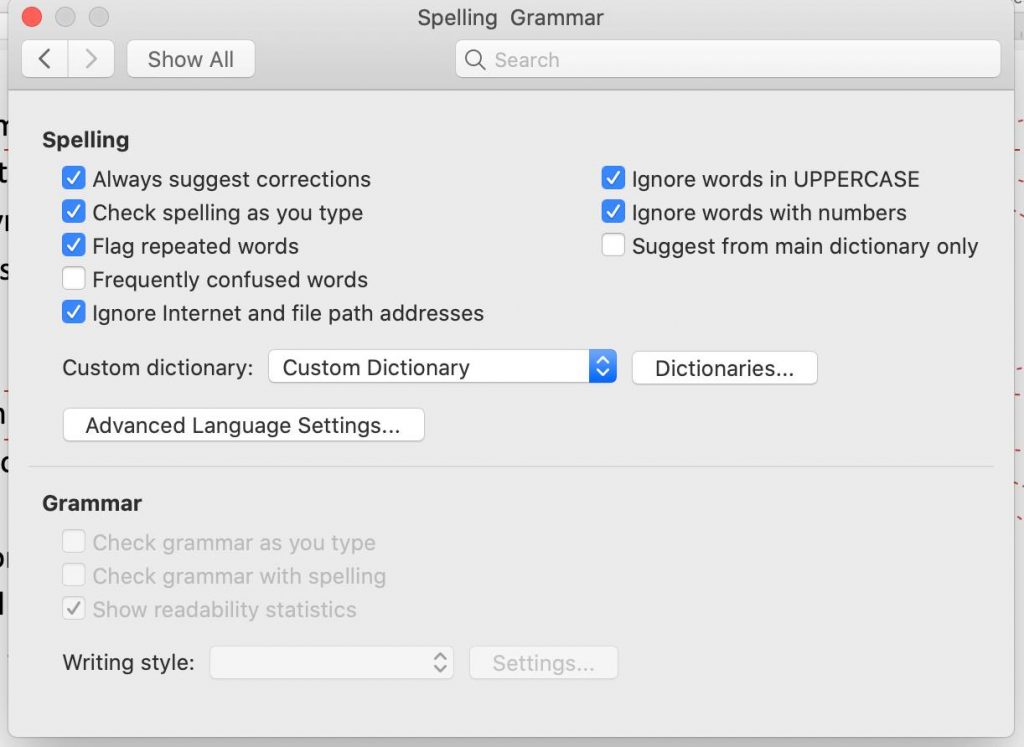
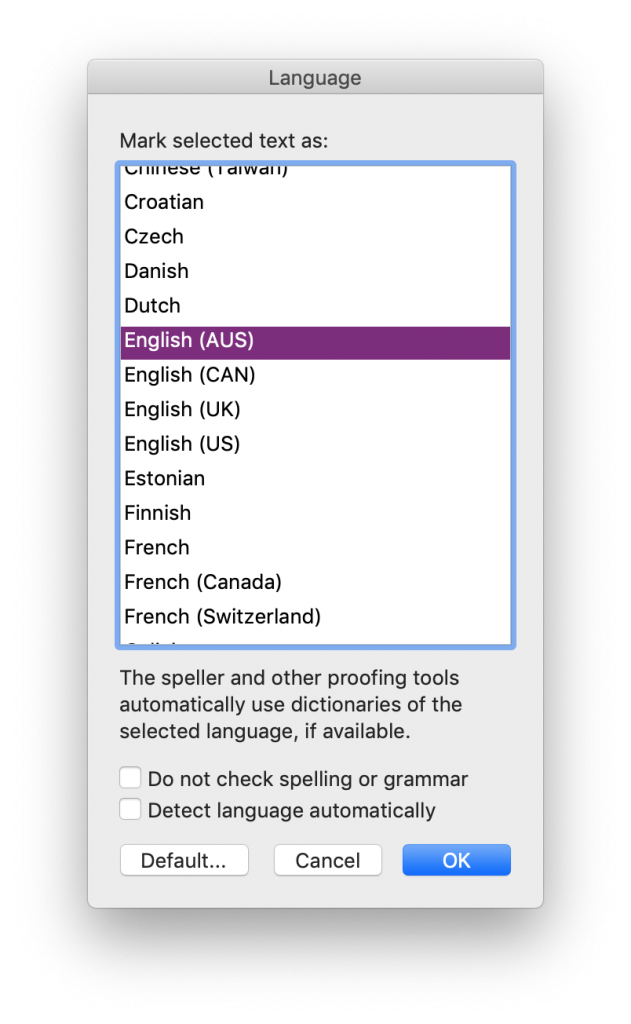
ACheck the language settings in the Style setting of that text. If it is set to a language whose dictionary is not installed, the Grammar check options won’t be available.

While the grammar checking aspect of the (newly termed) Editor is improving, one of the most useful aspects of this tool is the reading level assessment (readability statistics) it can provide at the end of the process. For more on reading levels assessments, see this other blog post.
Troubleshooting
Check all of the styles used in the document.

Be sure to click on the desired language and click OK. Just because it’s listed at the top doesn’t mean that a language is selected.
In the Style’s settings, ensure that the “Do not check spelling and grammar” option is NOT checked off/ticked/selected.
Save and close the document if this change doesn’t work at first. Close and reopen Word, too.
Got a gnarly Word problem? Submit your problem and we’ll try to answer it in the Q&A thread.
Learn with us! Join a course today.
© This blog and all materials in it are copyright Adrienne Montgomerie on the date of publication. All rights reserved. No portion may be stored or distributed without express written permission. Asking is easy!
Delete All Images from a Word Document

Images can be integral content in a manuscript: graphs convey huge volumes of data and information about their relationships; flowcharts relay sequences and relationships; pictures convey context and describe scenes. Images need to be seen while developing a manuscript or reviewing one, because they are so important. But images can also make files enormous to the point of crashing Word or email. Rather than deleting images one by one so that you can work with the file, delete them all at once with this simple Find and Replace in the Find/Navigation panel:
Continue reading Delete All Images from a Word DocumentTurbo Boost Manuscript Styling with This Simple Macro for MS Word

Styles have many wonderful uses, so it behoves any editorial process to use them. We’ve looked at several ways to apply styles, now we’ll look at a macro that will apply several styles in one click!
Continue reading Turbo Boost Manuscript Styling with This Simple Macro for MS WordReject Tracked Changes Cleanly

Every time you replace a word (or words) in MS Word using tracked changes, Word annotates two changes: a deletion and an insertion. To reject a change and reinstate the original, you have to reject BOTH changes.