Tag Archives: essentials

Regular Expressions Will Turbo Boost Your Find & Replace

Find and Replace is both an essential tool in the editor’s toolbox and the source of ruination. (Into every editor’s life, a hilariously bad Replace All will fall.) You can use “regular expressions” to turbo boost your F&R!

Continue reading Regular Expressions Will Turbo Boost Your Find & Replace
Streamline Accepting Changes

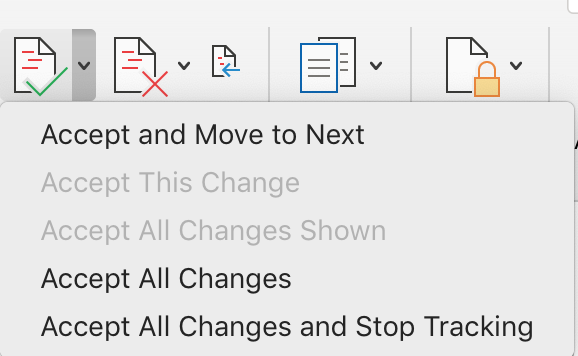
Click less when resolving tracked changes with this pro tip!

Find this menu of commands by clicking the tiny down arrow beside the Accept icon on the Reviewing ribbon.

Reject changes you do not like, and leave the rest. That leaves a
document full of changes that you do want to accept. Then, select Accept All Changes from the Review ribbon and clean up the file with a single click!

Continue reading Streamline Accepting Changes

Spot What Tracked Changes Can Hide

Open this menu in the Track Changes area of the Review ribbon.

Always give a document a once-over in Simple Markup or No Markup view before submitting it as a finished edit. This often reveals a bunch of formatting errors that arise from working with markup displayed (that is, with Track Changes visible). Common errors often obscured by the redlining on the screen include:

  • double spaces between words,
  • spaces around punctuation, or
  • no spaces between words.
Continue reading Spot What Tracked Changes Can Hide

Track Changes, the Enemy of Wildcards

Today’s tip comes from page 13 of the 2nd edition of Editing in Word:

Turn off Track Changes when using wildcards in a find and replace.

What Are Wildcards?

Wildcards are the elements that tell Word to do things like:

  • search for a range of numbers — example: [0-9],
  • or to treat search text as chunks of content — example \1 and \2.
Continue reading Track Changes, the Enemy of Wildcards

Editing Footnotes & Endnotes

The footnote function is one of the great features of Word: it will automatically change numbering, place them in order at the bottom of the page, shift them as pages grow and shrink, and renumber when they are moved around. The endnote function is similarly great. And even better, you can use both in one document!

However, editing footnotes and endnotes poses some challenges. Sure, Word will track changes you make to the words in the note, but it doesn’t handle other edits quite so smoothly, as shown in the demo video below.

Continue reading Editing Footnotes & Endnotes

Tracking Moved Text

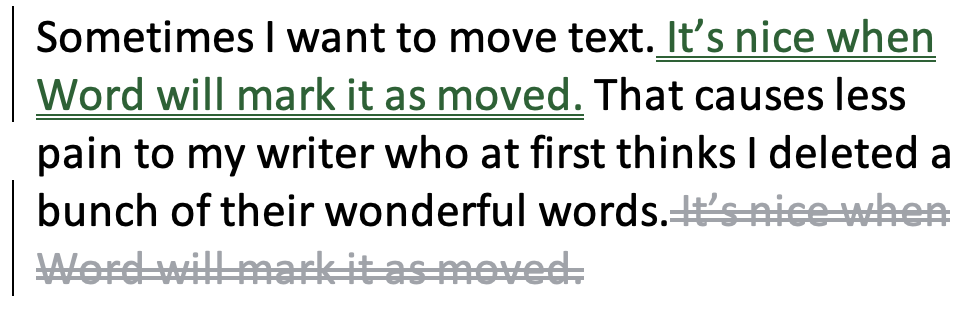
Sometimes I want to move text. It’s nice when Word will mark it as moved. That causes less pain to my writer who at first thinks I deleted a bunch of their wonderful words.
My Word options are set to mark moved text as shown above.

The problem is that this function is glitchy in Word. Sometimes you just can’t get the text to be marked as “moved.” After checking that the Preferences for Track Changes (see figure below) are indeed set to mark moves, try these two solutions:

Continue reading Tracking Moved Text

Eliminate Paragraph Breaks at the End of Every Line With This Find & Replace Sequence

Remember that satisfying gear-wind and ding of shoving the carriage return back to the left of the page at the end of every line? Some writers do! But Word is not a typewriter. There should be a little pop-up confirmation box when a writer tries to hit the return key at the end of every line. And if they try to hit it twice to create double spacing, a captcha should pop-up, asking if they really want to insert two manual paragraph breaks.

Continue reading Eliminate Paragraph Breaks at the End of Every Line With This Find & Replace Sequence

Word’s Style Gallery

Along the Home ribbon, if the window is wide enough, you can see several Styles for words and paragraphs. Unlike the font and size selections at the left edge of the ribbon, Style sets standard attributes for each kind of text: normal, body, headings, footers, and even comment balloons. And those attributes can be changed throughout a document with a single modification to the style.

Continue reading Word’s Style Gallery

Fix Extra Line Spaces

pretzel shaped as a reverse P, the pilcrow paragraph mark

Extra line spaces in a manuscript create layout problems. Whether they were used to create paragraph spacing or start a new page, manual line spacing just isn’t the best practice. What works more elegantly in the workflow is setting the paragraph spacing and using manual page breaks. But first, get rid of those extra line breaks and hard returns!

Just like the extra spaces in last week’s post, there’s no reason to be hunting and destroying extra line spaces by eye, one at a time. With a simple find and replace, MS Word can rid the file of these unwanted artifacts with just a click (or two).

Easy Steps to Rid the Manuscript of Unneeded Line Spaces

Continue reading Fix Extra Line Spaces

Turn Double Spaces into Single with Just a Click

Whether it’s a holdover from the old days or someone following APA’s guide from a few years ago, every editor will eventually see a manuscript that has two spaces after every period. Because modern layout software handles sentence spacing better than typewriters did, these double spaces are no longer necessary and can, in fact, create weirdly large spacing. One of the routine things an editor (or compositor) does is strip out those double spaces. But there’s no reason to be doing this by eye, one at a time. With a simple find and replace, MS Word can rid the file of these ancient artifacts with just a click.

How to Turn Two Spaces into One

Continue reading Turn Double Spaces into Single with Just a Click