Tag Archives: essentials

Finding Imposters: Degrees

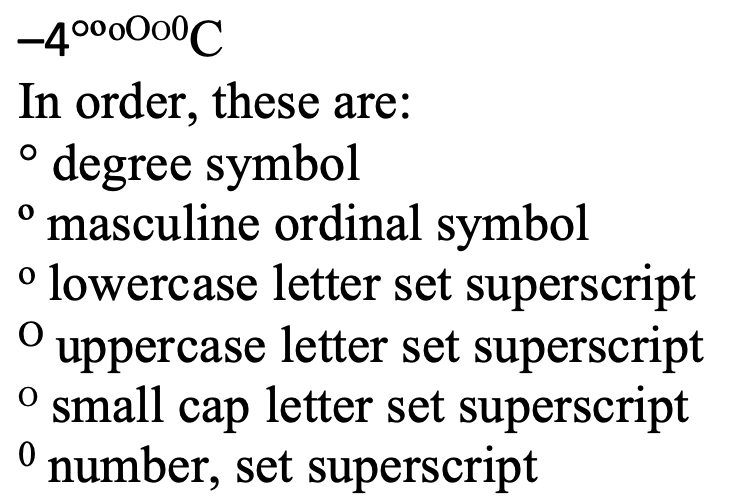
Side by side, the imposters are still not always clear.

The degree symbol is used for angles and arcs, temperatures, and the ‘proof’ of alcohol, among other things. You’ll even find it in harmonics. It started as a raised glyph of the digit 0, but best practice in typesetting and design now is to use a true degree symbol designed for the purpose.

The degree symbol is preferred because many fonts style the alternatives in ways that make them look very out of place as a degree symbol.
To Type the Degree Symbol

Continue reading Finding Imposters: Degrees

Quick Change: upper- to lowercase, and more

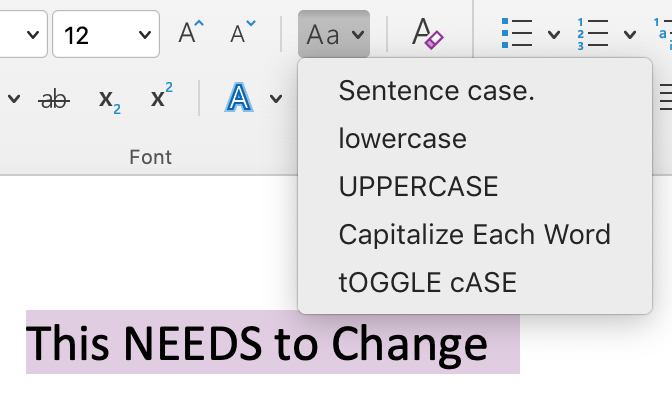
Has your writer used all uppercase letters “for legibility”? Did they use them liberally for emphasis? Fix it all with a click (or 3):

  • Select the text to change, then
  • click the Change Case icon on the Home ribbon and
  • select the preferred style.
Continue reading Quick Change: upper- to lowercase, and more

Track Changes Inline or in Balloons

The book and its tutorial videos go into options for seeing Tracked Changes in quite a bit of detail, so here we’ll just compare seeing changes in balloons vs seeing them inline. We’re also sticking with the defaults for colour, underlining, etc. though it’s almost all customizable. (Except for specifying which reviewer is shown in which colour; that’s impossible.)

Continue reading Track Changes Inline or in Balloons

How to Find Highlighting

Editors sometimes use highlighting in MS Word to flag content. My publisher clients have asked me to highlight design and production instructions within the text, and I use highlighting to flag item for fact checking or a second look. (Design instructions include things like [table near here] and [note this is a mu symbol].)

Therefore, one of my final checks on a file is to review all the highlighting. Word makes this easy, using the Advanced Find and Replace to skip through all instances of highlighting.

Continue reading How to Find Highlighting

Paste Options in Word 365

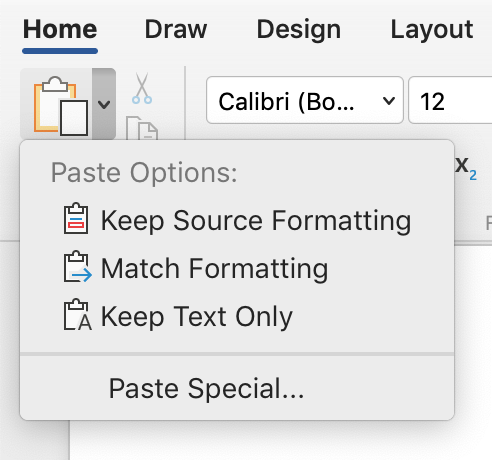
Not nearly as flavourful as that paste we ate in preschool, but maybe more useful, Word has several options for you to paste content with. Get at the the options from the ribbon. Just click the little down arrow beside the Paste button on the left end of the Home ribbon to see the options.

Here’s how they’re useful:

Continue reading Paste Options in Word 365

Quick Trick to Remove Hyperlinks

They got rid of Clippy but not many of the other annoying automated features in MS Word. Automatic formatting is something that most editors want to turn off before they work. In fact, this is why turning off most automation is covered in the “Get Ready to Edit” section of the book.

When you get a document in which all of the URLs (web addresses) are blue and underlined, and active (hyperlinked), you’ll most likely want to remove them so they don’t cause design problems or (horrors!) end up in print. You can do this one at a time, or in one fell swoop (globally).

Continue reading Quick Trick to Remove Hyperlinks

What to Do With an Edited Word File

Your manuscript just came back from the copyeditor or proofreader. Now what?

Mock Shock
After you freak out over all the mark-up, tell yourself this is typical for professional writing, take a breath, and roll up your sleeves.

It’s time to check the changes the editor made, answer their questions, and clear up any remaining issues. The file will probably go back to the editor for some final clean up. If it doesn’t, you have to clear ALL markup to make it ready for the printer/ production department.

There may be a lot of work left. This is typical and does not mean the writing is terrible. Even if an editor wrote it, she could expect as many edits on her work; writing is like that. Addressing edits takes an average of 1 hr per 2500 words, so settle yourself in and let’s go.

Short Version| Long Version

Continue reading What to Do With an Edited Word File

6 Ways Word Find Fails

The powerful Find and Replace function is one of the reasons editors still prefer using Word for editing documents. Despite the endless program crashes, and all the fails listed here, the power of wildcards and special characters (regular expressions) in Word just isn’t matched by Google Docs, Pages, or any of the myriad alternative programs our clients try to get us to use.

Yet anyone who earns a living using Word can tell you it lets them down in spectacular ways. Knowing some of the ways a Find and Replace effort will malfunction not only lets you be aware that Word may not have your back, but lets you avoid these problems too:

Continue reading 6 Ways Word Find Fails

Stop Word from Stripping Your Name from Comments and Changes

If all the tracked changes and comments are being shown as being made by “Author”, the document probably has been set to remove all personal data on save. This setting is sticky, so it keeps removing all data upon every save. You have to turn that off to get your name to stick.

Continue reading Stop Word from Stripping Your Name from Comments and Changes