Tag Archives: MS Word

Quick Change: upper- to lowercase, and more

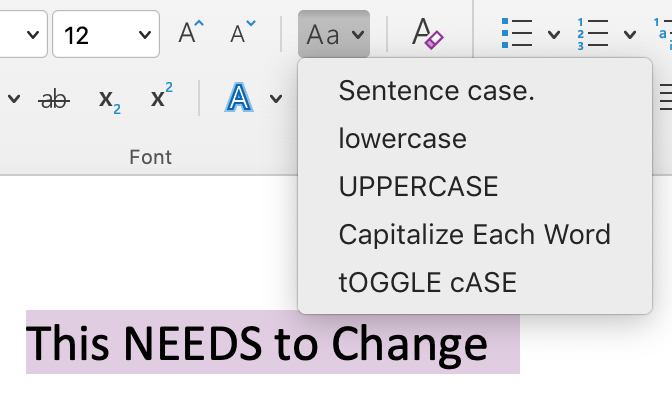
Has your writer used all uppercase letters “for legibility”? Did they use them liberally for emphasis? Fix it all with a click (or 3):

  • Select the text to change, then
  • click the Change Case icon on the Home ribbon and
  • select the preferred style.
Continue reading Quick Change: upper- to lowercase, and more

Curly Quote Catches

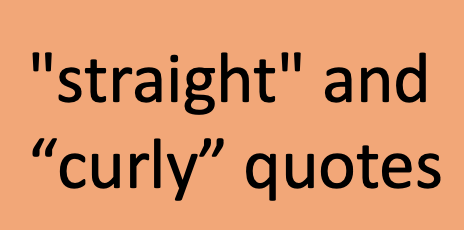
Curly quotation marks curve in, toward the content that they bracket.

They look nice, and some would say they facilitate reading ease. But curly quotes can cause snafus with macros, wildcards, and content management systems (CMS) like online education interfaces and website back ends. And sometimes Word just doesn’t want to create a mark with the right curl. Here’s how to fix those snags.

Correcting the Curl

If your quotes (or apostrophes) are simply facing the wrong way, the easiest thing to do is type a second mark beside it then erase the wrong one. Or, use one of the keyboard shortcuts listed in the table below. Alt codes work on both operating systems but Mac users may have to turn on the alt codes (or even the unicode) keyboard first. Windows users should type the first two keys together, then press the keys that follow the comma.

Alt CodeMacWindows
opening single quotealt + 0145opt + ]
closing single quotealt + 0146 opt + shift + ]ctrl + ‘, ‘
opening double quotealt + 0147opt + [shift + “
closing double quotealt + 0148opt + shift + [ctrl + ‘, shift + “

Solving F&R Errors

If your find and replace string isn’t working, or it is royally messing up the manuscript, try replacing all the curly quotation marks with straight ones before you run the F&R. Then change them back.

You can read about how to easily change them in this other post.


Got a gnarly Word problem? Submit your problem and we’ll try to answer it in the Q&A thread.


Learn with us! Join a course today.

© This blog and all materials in it are copyright Adrienne Montgomerie on the date of publication. All rights reserved. No portion may be stored or distributed without express written permission. Asking is easy!

Track Changes Inline or in Balloons

The book and its tutorial videos go into options for seeing Tracked Changes in quite a bit of detail, so here we’ll just compare seeing changes in balloons vs seeing them inline. We’re also sticking with the defaults for colour, underlining, etc. though it’s almost all customizable. (Except for specifying which reviewer is shown in which colour; that’s impossible.)

Continue reading Track Changes Inline or in Balloons

How to Find Highlighting

Editors sometimes use highlighting in MS Word to flag content. My publisher clients have asked me to highlight design and production instructions within the text, and I use highlighting to flag item for fact checking or a second look. (Design instructions include things like [table near here] and [note this is a mu symbol].)

Therefore, one of my final checks on a file is to review all the highlighting. Word makes this easy, using the Advanced Find and Replace to skip through all instances of highlighting.

Continue reading How to Find Highlighting

Paste Options in Word 365

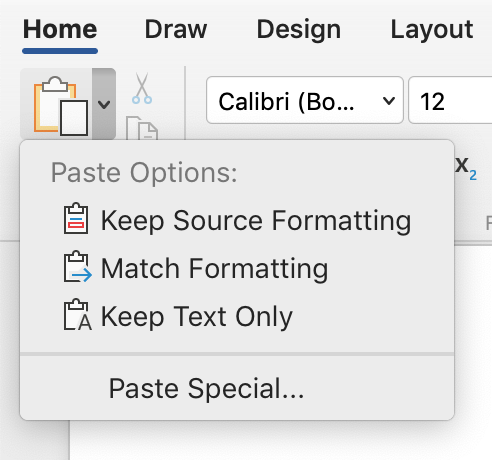
Not nearly as flavourful as that paste we ate in preschool, but maybe more useful, Word has several options for you to paste content with. Get at the the options from the ribbon. Just click the little down arrow beside the Paste button on the left end of the Home ribbon to see the options.

Here’s how they’re useful:

Continue reading Paste Options in Word 365

Quick Trick to Remove Hyperlinks

They got rid of Clippy but not many of the other annoying automated features in MS Word. Automatic formatting is something that most editors want to turn off before they work. In fact, this is why turning off most automation is covered in the “Get Ready to Edit” section of the book.

When you get a document in which all of the URLs (web addresses) are blue and underlined, and active (hyperlinked), you’ll most likely want to remove them so they don’t cause design problems or (horrors!) end up in print. You can do this one at a time, or in one fell swoop (globally).

Continue reading Quick Trick to Remove Hyperlinks

Fonts for Editing

a map "locator pin" styled as the MS Word logo
To learn more about fonts for effective editing, see Section 36 of the book.

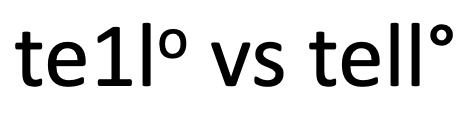
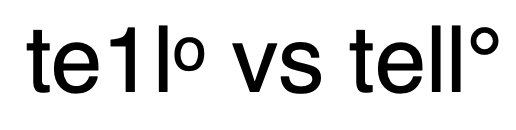
Font geeks love to debate readability and myriad other details about fonts. The other thing that matters when editing is being able to tell when the wrong character has been used. Font choice can cleverly conceal a wrong character hiding in a document: a 1 looks like an l, a superscript o looks like a °, an ‘ masquerades as a ′…

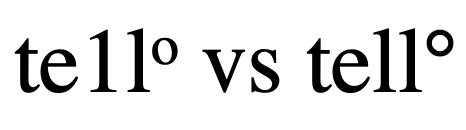
screen capture showing one and ell are nearly identical in Times New Roman font as well as the similarity between a superscript letter O and a degree symbol.
Times New Roman makes telling the difference between a 1 and an l nearly impossible. The superscript O versus the degree symbol is easier to spot; if you know what it should look like, that is.
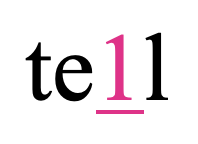
colour reveals which character is the one
The pink character in this word is actually the digit one. There are some indicators such as spacing and height, but it’s not easy to tell at usual working magnification.

Changing the font to one that shows a more drastic difference between characters is one solution. Some editors prefer to edit in Helvetica, Calibri, or Verdana for just such a reason. If you modify the font of the “Normal” Style, it’s easy to undo this font change before finalizing the file. The client will never know the trick that helped you spot those apostrophes that should be primes. Just turn off Track Changes when you change the font.

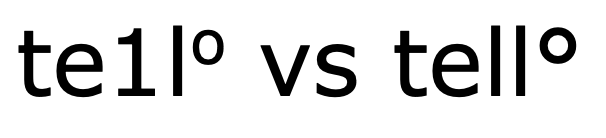
screen capture showing one and ell are clearly different in Verdana font as well as the similarity between a superscript letter O and a degree symbol.
Verdana shows clear differences between the one and ell but if you didn’t know what a degree symbol (right) looked like, it might be easy for the superscript letter O to pass itself off.
a map "locator pin" styled as the MS Word logo
If this was helpful, you might want to explore even more radical formatting that boosts editing!
Calibri makes differences very clear, once you know what a degree symbol should look like.
Helvetica is an editor favourite, and it’s easy to see why in this example.


Got a gnarly Word problem? Submit your problem and we’ll try to answer it in the Q&A thread.


Learn with us! Join a course today.

© This blog and all materials in it are copyright Adrienne Montgomerie on the date of publication. All rights reserved. No portion may be stored or distributed without express written permission. Asking is easy!

What to Do With an Edited Word File

Your manuscript just came back from the copyeditor or proofreader. Now what?

Mock Shock
After you freak out over all the mark-up, tell yourself this is typical for professional writing, take a breath, and roll up your sleeves.

It’s time to check the changes the editor made, answer their questions, and clear up any remaining issues. The file will probably go back to the editor for some final clean up. If it doesn’t, you have to clear ALL markup to make it ready for the printer/ production department.

There may be a lot of work left. This is typical and does not mean the writing is terrible. Even if an editor wrote it, she could expect as many edits on her work; writing is like that. Addressing edits takes an average of 1 hr per 2500 words, so settle yourself in and let’s go.

Short Version| Long Version

Continue reading What to Do With an Edited Word File

6 Ways Word Find Fails

The powerful Find and Replace function is one of the reasons editors still prefer using Word for editing documents. Despite the endless program crashes, and all the fails listed here, the power of wildcards and special characters (regular expressions) in Word just isn’t matched by Google Docs, Pages, or any of the myriad alternative programs our clients try to get us to use.

Yet anyone who earns a living using Word can tell you it lets them down in spectacular ways. Knowing some of the ways a Find and Replace effort will malfunction not only lets you be aware that Word may not have your back, but lets you avoid these problems too:

Continue reading 6 Ways Word Find Fails