Your manuscript just came back from the copyeditor or proofreader. Now what?
After you freak out over all the mark-up, tell yourself this is typical for professional writing, take a breath, and roll up your sleeves.
It’s time to check the changes the editor made, answer their questions, and clear up any remaining issues. The file will probably go back to the editor for some final clean up. If it doesn’t, you have to clear ALL markup to make it ready for the printer/ production department.
There may be a lot of work left. This is typical and does not mean the writing is terrible. Even if an editor wrote it, she could expect as many edits on her work; writing is like that. Addressing edits takes an average of 1 hr per 2500 words, so settle yourself in and let’s go.
The powerful Find and Replace function is one of the reasons editors still prefer using Word for editing documents. Despite the endless program crashes, and all the fails listed here, the power of wildcards and special characters (regular expressions) in Word just isn’t matched by Google Docs, Pages, or any of the myriad alternative programs our clients try to get us to use.
Yet anyone who earns a living using Word can tell you it lets them down in spectacular ways. Knowing some of the ways a Find and Replace effort will malfunction not only lets you be aware that Word may not have your back, but lets you avoid these problems too:
Word’s “autocorrect as you type” feature can be used as a built-in text expander to save you thousands of keystrokes over a single day. Here are ten suggestions to get you started.
your initials → your full name
ph → your phone number
e[ → your email address
abb → abbreviation
a[ → AU: Change ok?
x space → ×
/ space → ÷
c/ → ¢
cite → AU: Please add a complete citation for this quote to the references.
wtf → AU: Can you explain this to me another way so that I may suggest an edit for clarity?
Once you’ve started entering these “shortcuts” you’ll start noticing other times that an expander can be put to use. Maybe it could enter your mailing address, or the entire intro text for a file transmittal message!
This is also where you’ll find that (TM) turns into a proper ™️ symbol, and more!
When someone’s name becomes legendary — becomes a verb, even — it can be a surprise to learn they had “another life”; a life beyond that singular fame. The editing world lost such a star this weekend; someone we have come to revere for the Word tip she shared, it was that valuable. And in Maggie Secara’s sudden passing, we learned she was a rounded woman, not just the namesake of a sanity-saving computer trick.
Maggie’s Clever Hack
If you’ve needed to resuscitate a problematic Word document, you’ve probably done “a Maggie.” Copying everything but the final pilcrow into a fresh Word document breathes hope into files that seem beyond redemption because Word saves a hoard of information in that last hidden character. And that hoard can cause Word to crash or fail, again and again. Omitting the final pilcrow purges the problematic hidden code.
“To Maggie” isn’t a technical term that Microsoft recognizes. This name arose in honour of this woman who popularized the process by sharing it repeatedly in an online forum for Word users.
Getting to Know Maggie
“Is that you?” Maggie Secara often got asked. “Yeah, that’s
me,” she’d say. “What can I say? I’ve never been a verb before.”
Though Maggie proved to be mere mortal, she is remembered for a surprising array of talents. I knew her as a technical writer and novelist, but many are speaking to her enthusiasm for things renaissance. In fact, if you’re working on something set in that era, you’ll find her book invaluable for fact checking: A Compendium of Common Knowledge 1558-1603.
Maggie’s writing and editing work took her so deeply into MS Word software, that she became an uber-user. She picked up the pilcrow-excluding file remedy in one of the user forums and shared it whenever it could help. One day, the planets seemed to align (nefariously) and several people had problematic Word files at once. Maggie explained this solution so often that others in the forum began asking: “Did you Maggie it?” The new term spread beyond that forum when one person spoke of it at a conference.
Since then, Maggie’s legend spread to other
forums and to the editing community at large. “The Maggie” has recovered
innumerable files from snafu, and saved almost as much sanity.
Rest in peace, Maggie. If only we could take back your final pilcrow.
If all the tracked changes and comments are being shown as being made by “Author”, the document probably has been set to remove all personal data on save. This setting is sticky, so it keeps removing all data upon every save. You have to turn that off to get your name to stick.
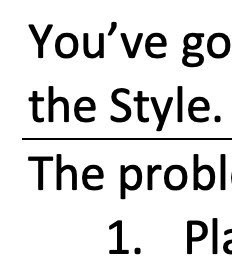
You’ve got a line
under a paragraph that you can’t get rid of. You’ve checked underlining and the
Style. You’ve deleted the final hard return, the pilcrow mark. But the line
persists.
The problem is likely
a border. Getting rid of it can be easy:
Place the
cursor in the offending paragraph.
On the Home
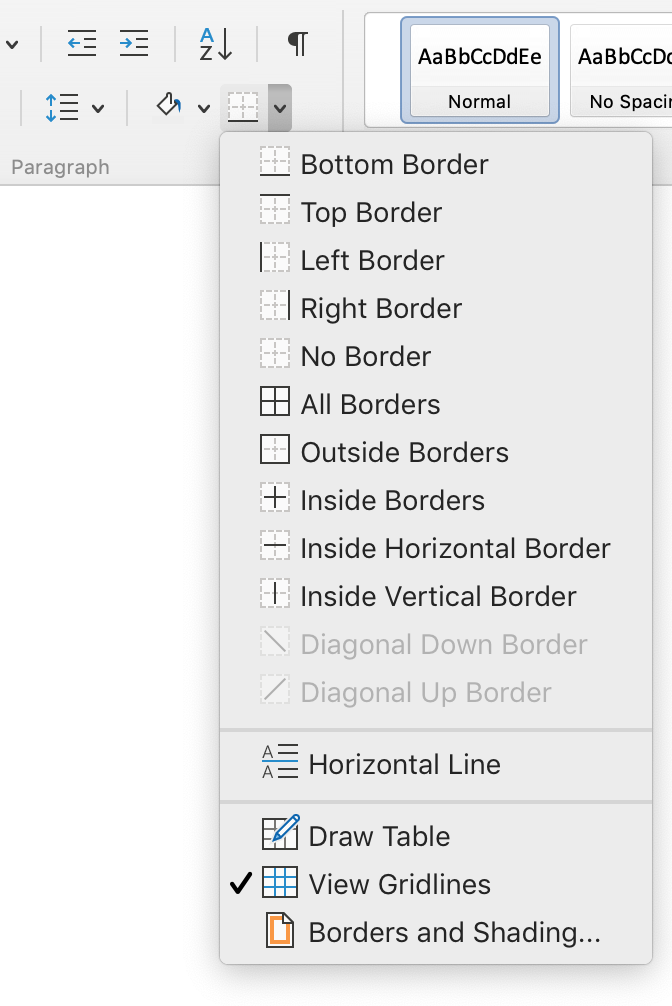
ribbon, look in the Paragraph group for the little grid, below the pilcrow
icon.
Click the
little down arrow on the right side of that grid icon.
Deselect
Bottom Border.
Troubleshooting
It might be a Top Border, if deselecting Bottom Border didn’t work, try placing the cursor in the paragraph below the line, then deselecting Top Border.
If the line keeps coming back, or is applied to every paragraph, check the Style settings for that text (usually Normal). The border may be specified right in the Style so Word keeps reapplying it, “helpfully.”
It’s possible to Select All of the document and deselect the border for all text in the document. This will also affect tables in the text but will not change the Style settings, so lines may appear in new paragraphs.
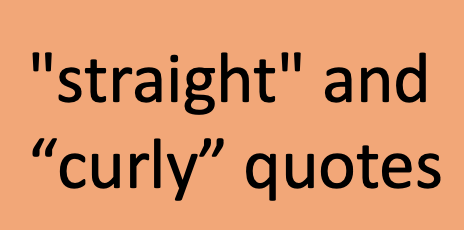
Curly quotation marks curve or slant inward toward the content they bracket. (The font or typeface choice determines how they look, precisely.) Straight quotation marks are… straight. Word can do either, but you have to set your preference.
Sometimes a table seems stuck in its alignment. No matter how many times you select the whole table and set paragraph alignment, it won’t budge. The trick is to drag the table using its grab point:
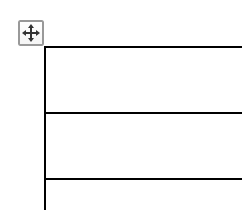
Hover over the table until the grab point pops up. That’s the 4-way arrow at the top left corner of the table.
Click on the grab point and drag the table where you want it.
Hover the cursor over a table to make the grab point appear.
To make sure the table aligns with the margins, reveal the ruler by checking the box on the View ribbon.
The pilcrow has marked the end of a paragraph since long before there were computers. The little backwards ¶ today is found hiding in documents, storing vital format information, and marking paragraph breaks.