Editors know that English spelling preferences differ from the Americas to Europe, and even differ within the Americas. MS Word is ready to help, with at least three options for English spellcheck dictionaries in the Language settings.
Continue reading The Many Englishes of MS WordTag Archives: how to
Curly Quote Catches

They look nice, and some would say they facilitate reading ease. But curly quotes can cause snafus with macros, wildcards, and content management systems (CMS) like online education interfaces and website back ends. And sometimes Word just doesn’t want to create a mark with the right curl. Here’s how to fix those snags.
Correcting the Curl
If your quotes (or apostrophes) are simply facing the wrong way, the easiest thing to do is type a second mark beside it then erase the wrong one. Or, use one of the keyboard shortcuts listed in the table below. Alt codes work on both operating systems but Mac users may have to turn on the alt codes (or even the unicode) keyboard first. Windows users should type the first two keys together, then press the keys that follow the comma.
| Alt Code | Mac | Windows | ||
| ‘ | opening single quote | alt + 0145 | opt + ] | ‘ |
| ’ | closing single quote | alt + 0146 | opt + shift + ] | ctrl + ‘, ‘ |
| “ | opening double quote | alt + 0147 | opt + [ | shift + “ |
| ” | closing double quote | alt + 0148 | opt + shift + [ | ctrl + ‘, shift + “ |
Solving F&R Errors
If your find and replace string isn’t working, or it is royally messing up the manuscript, try replacing all the curly quotation marks with straight ones before you run the F&R. Then change them back.
You can read about how to easily change them in this other post.
Got a gnarly Word problem? Submit your problem and we’ll try to answer it in the Q&A thread.



Learn with us! Join a course today.

© This blog and all materials in it are copyright Adrienne Montgomerie on the date of publication. All rights reserved. No portion may be stored or distributed without express written permission. Asking is easy!

Track Changes Inline or in Balloons
The book and its tutorial videos go into options for seeing Tracked Changes in quite a bit of detail, so here we’ll just compare seeing changes in balloons vs seeing them inline. We’re also sticking with the defaults for colour, underlining, etc. though it’s almost all customizable. (Except for specifying which reviewer is shown in which colour; that’s impossible.)
Continue reading Track Changes Inline or in Balloons
How to Find Highlighting
Editors sometimes use highlighting in MS Word to flag content. My publisher clients have asked me to highlight design and production instructions within the text, and I use highlighting to flag item for fact checking or a second look. (Design instructions include things like [table near here] and [note this is a mu symbol].)
Therefore, one of my final checks on a file is to review all the highlighting. Word makes this easy, using the Advanced Find and Replace to skip through all instances of highlighting.
Continue reading How to Find Highlighting10 Things to Add to Word’s AutoCorrect
Word’s “autocorrect as you type” feature can be used as a built-in text expander to save you thousands of keystrokes over a single day. Here are ten suggestions to get you started.
- your initials → your full name
- ph → your phone number
- e[ → your email address
- abb → abbreviation
- a[ → AU: Change ok?
- x space → ×
- / space → ÷
- c/ → ¢
- cite → AU: Please add a complete citation for this quote to the references.
- wtf → AU: Can you explain this to me another way so that I may suggest an edit for clarity?

Once you’ve started entering these “shortcuts” you’ll start noticing other times that an expander can be put to use. Maybe it could enter your mailing address, or the entire intro text for a file transmittal message!
This is also where you’ll find that (TM) turns into a proper ™️ symbol, and more!

How to Create AutoCorrect Entries
Mac users, open Word Preferences and click AutoCorrect.
Windows users, go to File > Options > Proofing. Then click the AutoCorrect Options…
Troubleshooting
Be sure to close down Word so that these changes are saved. If Word crashes before you shut down, all your new AutoCorrects will be lost.
How do you put AutoCorrect to use? Join the conversation on Blusky or Facebook using the hashtag #eiw365.
If Only We Could “Maggie” Maggie Herself
When someone’s name becomes legendary — becomes a verb, even — it can be a surprise to learn they had “another life”; a life beyond that singular fame. The editing world lost such a star this weekend; someone we have come to revere for the Word tip she shared, it was that valuable. And in Maggie Secara’s sudden passing, we learned she was a rounded woman, not just the namesake of a sanity-saving computer trick.

Maggie’s Clever Hack
If you’ve needed to resuscitate a problematic Word document, you’ve probably done “a Maggie.” Copying everything but the final pilcrow into a fresh Word document breathes hope into files that seem beyond redemption because Word saves a hoard of information in that last hidden character. And that hoard can cause Word to crash or fail, again and again. Omitting the final pilcrow purges the problematic hidden code.
“To Maggie” isn’t a technical term that Microsoft recognizes. This name arose in honour of this woman who popularized the process by sharing it repeatedly in an online forum for Word users.
Getting to Know Maggie

“Is that you?” Maggie Secara often got asked. “Yeah, that’s me,” she’d say. “What can I say? I’ve never been a verb before.”
Though Maggie proved to be mere mortal, she is remembered for a surprising array of talents. I knew her as a technical writer and novelist, but many are speaking to her enthusiasm for things renaissance. In fact, if you’re working on something set in that era, you’ll find her book invaluable for fact checking: A Compendium of Common Knowledge 1558-1603.
Maggie’s writing and editing work took her so deeply into MS Word software, that she became an uber-user. She picked up the pilcrow-excluding file remedy in one of the user forums and shared it whenever it could help. One day, the planets seemed to align (nefariously) and several people had problematic Word files at once. Maggie explained this solution so often that others in the forum began asking: “Did you Maggie it?” The new term spread beyond that forum when one person spoke of it at a conference.
Since then, Maggie’s legend spread to other forums and to the editing community at large. “The Maggie” has recovered innumerable files from snafu, and saved almost as much sanity.
Rest in peace, Maggie. If only we could take back your final pilcrow.
Here’s more about the Word hack, in Maggie’s own words.

Pilcrow pretzel photo by Windell Oskay, used under CC BY-2.0 license.

Stop Word from Stripping Your Name from Comments and Changes
If all the tracked changes and comments are being shown as being made by “Author”, the document probably has been set to remove all personal data on save. This setting is sticky, so it keeps removing all data upon every save. You have to turn that off to get your name to stick.
Continue reading Stop Word from Stripping Your Name from Comments and Changes
Four Ways to Tell if Track Changes Is Turned On
1) Check the Icon on the Review Ribbon
Look on the Review ribbon. If the Track Changes button is greyed (Windows users) or the switch is green (Mac users), changes are being tracked.
Continue reading Four Ways to Tell if Track Changes Is Turned On
Convert Straight Quotes to Curly Ones, and Back
Curly quotation marks curve or slant inward toward the content they bracket. (The font or typeface choice determines how they look, precisely.) Straight quotation marks are… straight. Word can do either, but you have to set your preference.
Why It Matters
Continue reading Convert Straight Quotes to Curly Ones, and BackRealign Troublesome Tables
Sometimes a table seems stuck in its alignment. No matter how many times you select the whole table and set paragraph alignment, it won’t budge. The trick is to drag the table using its grab point:
- Hover over the table until the grab point pops up. That’s the 4-way arrow at the top left corner of the table.
- Click on the grab point and drag the table where you want it.
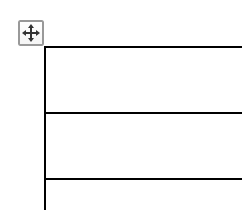
To make sure the table aligns with the margins, reveal the ruler by checking the box on the View ribbon.