
Word files can get bloated, taking up far more MB than they should. If you’re dealing with a book-length manuscript full of tracked changes and comments, that bloat can bog down the computer and lead to failures, glitches, and basic Office malfeasance.
Continue reading Shrink Files by Deleting Unused StylesTag Archives: hacks
5 Ways to Select Big Chunks of Text in a Word Document
Selecting unwieldy content doesn’t have to be a snafu experience.
You know that ctrl + A will “select all” contents of a Word file, but did you know that selecting less — large amounts but not all contents — can be as easy? No need to drag the mouse, jumping unexpectedly and far; it doesn’t have to be a tedious, glitchy, or imprecise experience. Just use one of these methods:
- triple-click
- outline view
- ctrl + shift + up/down arrows
- F8 (4 times)
- zoom out, then select
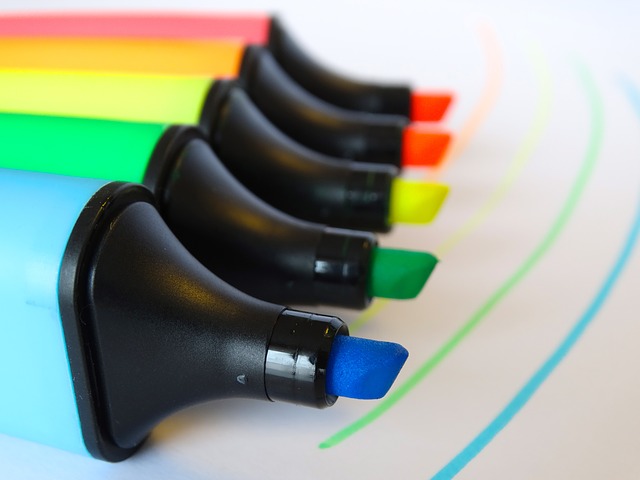
Six Uses for Highlighting in Manuscripts
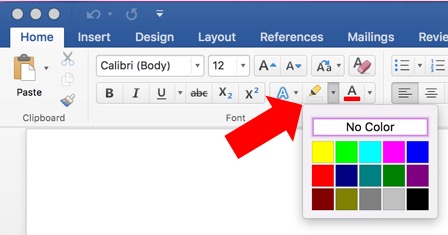
Highlighting jumps off the page as you scroll past, alerting you to content that needs attention. But you can also search for highlighted text, making it a useful “fail safe” (if not entirely safe from failing) as a final check for things left to be done such as fact checking.
Uses for the Highlighter
Highlighting has uses far beyond a study technique. In editing and production workflows, they can be used to
Continue reading Six Uses for Highlighting in ManuscriptsDelete All Images from a Word Document

Images can be integral content in a manuscript: graphs convey huge volumes of data and information about their relationships; flowcharts relay sequences and relationships; pictures convey context and describe scenes. Images need to be seen while developing a manuscript or reviewing one, because they are so important. But images can also make files enormous to the point of crashing Word or email. Rather than deleting images one by one so that you can work with the file, delete them all at once with this simple Find and Replace in the Find/Navigation panel:
Continue reading Delete All Images from a Word DocumentTurbo Boost Manuscript Styling with This Simple Macro for MS Word

Styles have many wonderful uses, so it behoves any editorial process to use them. We’ve looked at several ways to apply styles, now we’ll look at a macro that will apply several styles in one click!
Continue reading Turbo Boost Manuscript Styling with This Simple Macro for MS WordReject Tracked Changes Cleanly

Every time you replace a word (or words) in MS Word using tracked changes, Word annotates two changes: a deletion and an insertion. To reject a change and reinstate the original, you have to reject BOTH changes.
Two Ways to Reject Tracked Changes
Continue reading Reject Tracked Changes CleanlyQuick Tricks for Applying Styles to Word Documents
Styles are applied to many good ends, in Word: production workflow, ebook coding, and making restructuring easy, to name a few. There are several easy ways to apply styles, too!
- Styles area of the Home ribbon
- Styles panel
- Format painter
- Keyboard shortcut
Q&A: Can I accept only formatting changes?
Q Is there a way to only accept all formatting changes without accepting moved text? I can’t make it show *only* formatting. I can hide insertions/deletions and “accept all shown,” but that would also accept moves?
A You got it! Just hide all changes except the formatting ones and “Accept All Changes Shown” as shown in the steps below:
Continue reading Q&A: Can I accept only formatting changes?Try This! Restructure Using Styles
In this exercise, you’ll practice applying Styles and using the Outline View.
Heading levels must be indicated in the manuscript in some way. Heads can’t simply be formatted as body text—even boldfacing will help the designer as much as the editor. And the reader absolutely needs them.
Continue reading Try This! Restructure Using StylesFour Alternatives to Macros
Macros can do some amazing complex and lengthy tasks in just a click, but you don’t need a macro for everything! Here are four things to try before of creating a macro:
- autocorrect
- existing shortcuts
- custom shortcuts
- Clipboard