Call it a glitch, but if you’re missing the horizontal Reviewing Pane option in MS Word on your Mac, you can turn this glitch into a happy hack!
Create a macro for adding a comment and assign a shortcut to it. That’s it. You don’t have to add anything else to the macro. Using the macro will automatically open each new comment in a Reviewing Pane along the bottom of the screen (see figure).
Prevent Find and Replace from turning into “search and destroy” by using the Whole Word Only, option (“Find whole words only,” for Windows users). This feature helps you replace only whole words, and not matching fragments within other words.
Like a refined Find and Replace, the red-billed oxpecker picks parasites off an impala without hurting the host.
By simply selecting Whole Word Only, the software will identify only “man” and not “human“, for example. This helps to avoid replacement errors such as “inclient services” when attempting to replace instances of “patient.”
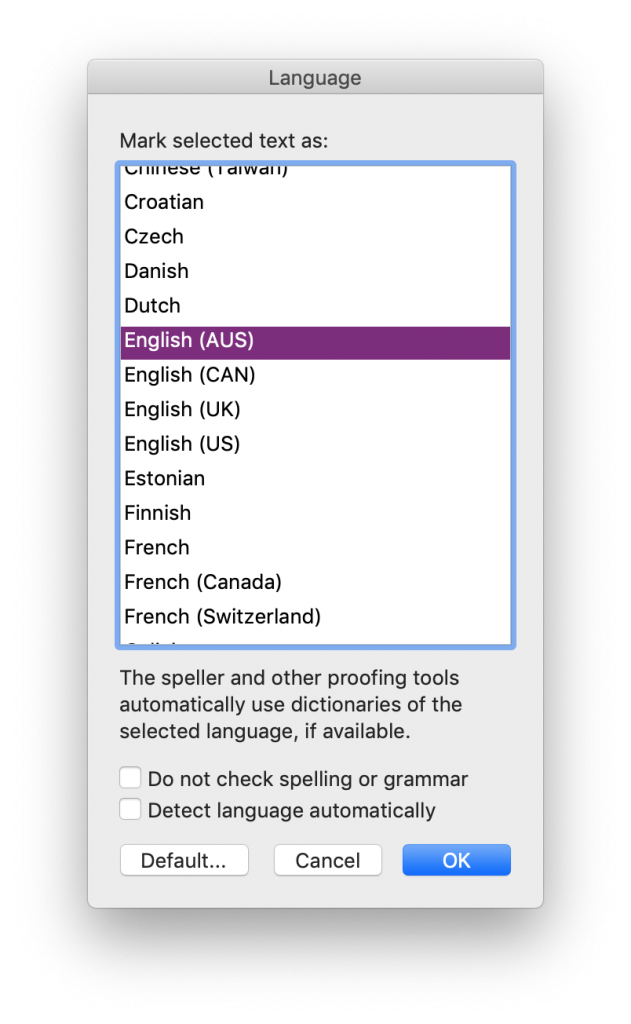
Click the Language icon on the Review ribbon to open this list of options. (The Windows version has even more English options!)
If you are pasting new content into a file, you may have to reset the language for that material as well. It is possible to set a different language for each word in a file, and Word seems to keep the language settings from the source document when pasting content. Sometimes it feels like I am constantly selecting all (⌘ + A) and resetting the language!
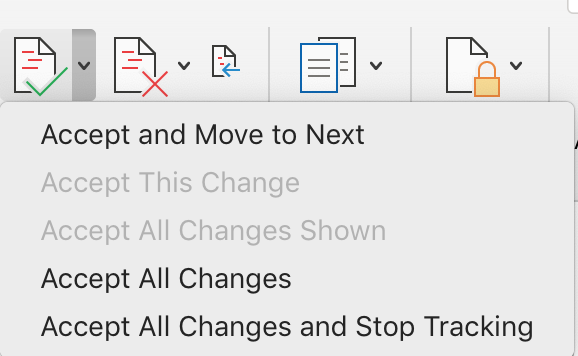
Click less when resolving tracked changes with this pro tip!
Find this menu of commands by clicking the tiny down arrow beside the Accept icon on the Reviewing ribbon.
Reject changes you do not like, and leave the rest. That leaves a document full of changes that you do want to accept. Then, select Accept All Changes from the Review ribbon and clean up the file with a single click!
Open this menu in the Track Changes area of the Review ribbon.
Always give a document a once-over in Simple Markup or No Markup view before submitting it as a finished edit. This often reveals a bunch of formatting errors that arise from working with markup displayed (that is, with Track Changes visible). Common errors often obscured by the redlining on the screen include:
The footnote function is one of the great features of Word: it will automatically change numbering, place them in order at the bottom of the page, shift them as pages grow and shrink, and renumber when they are moved around. The endnote function is similarly great. And even better, you can use both in one document!
However, editing footnotes and endnotes poses some challenges. Sure, Word will track changes you make to the words in the note, but it doesn’t handle other edits quite so smoothly, as shown in the demo video below.
QWhen running a full Spellcheck, Word won’t suggest the right word. What can I do besides writing down the misspelling and searching it out later to correct it manually?
AYou’re in luck! Just click in the document itself and make the change (Fig. 1), then return to the Spellcheck (now called Editor) window and resume. See details and demo video below.
Several comments were split into tiny bits and populated all following comments.
Word malfunctions in myriad ways, but sometimes it gets borked in SPECTACULAR ways. I have seen it completely obliterate any copy of the file, as though it borrowed the infinity gauntlet. It has spread a comment into tiny bits over the subsequent comments (see image). It has caught the vapours and decided it simply cannot show tracked changes anymore or run spellcheck…
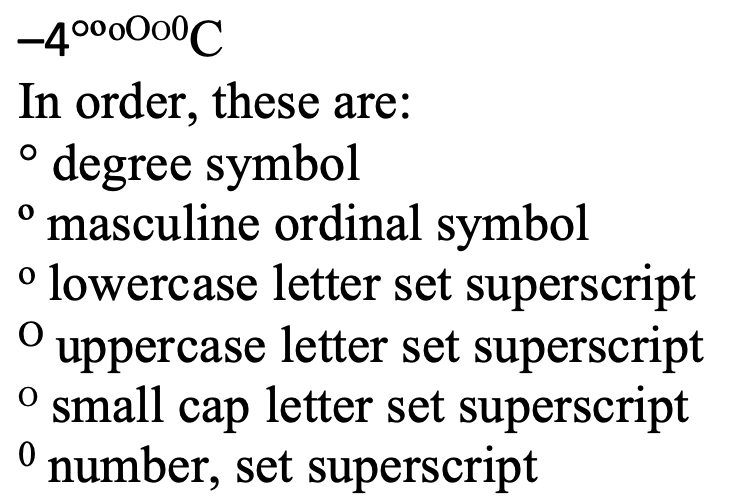
Side by side, the imposters are still not always clear.
The degree symbol is used for angles and arcs, temperatures, and the ‘proof’ of alcohol, among other things. You’ll even find it in harmonics. It started as a raised glyph of the digit 0, but best practice in typesetting and design now is to use a true degree symbol designed for the purpose.
The degree symbol is preferred because many fonts style the alternatives in ways that make them look very out of place as a degree symbol.
Right on the Home ribbon in MS Word you’ll find a Sort button. It’s handy for alphabetizing, to be sure, but you can use this as a hack to find duplicates in a bibliography too.
Some bibliographic styles list references in the order they are mentioned within the body of the text. This means they’re in 1, 2, 3 order rather than alphabetized by author name. Especially when a text is team written, duplicate entries can happen, and they’re hard to find when the bib or refs list is long.
Sort, to the rescue! With a couple steps, first. Watch the demo video or follow the 3 easy steps below.
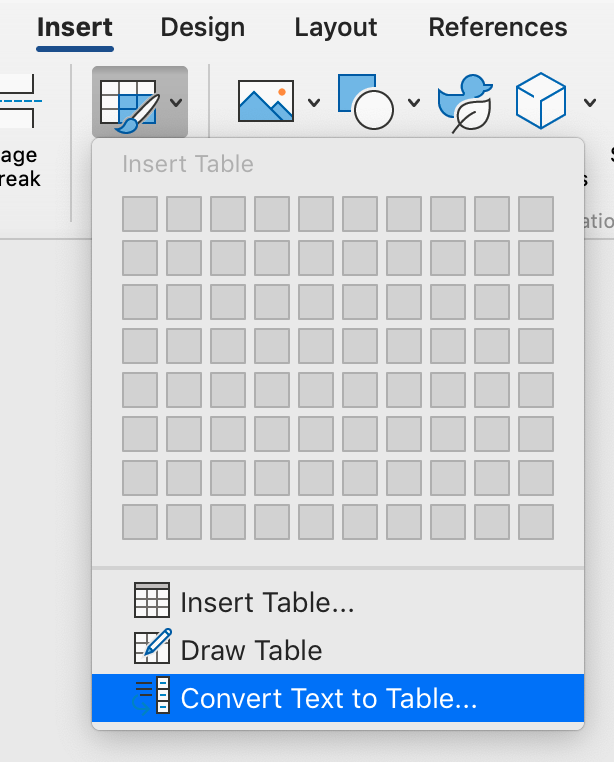
If your version of MS Word doesn’t have menus, go to the Insert ribbon and click the Table icon, then select Convert Text to Table.
Copy the reference list to a new doc, but when you paste, select Keep text only from the options in the Paste icon on the Home ribbon.
Select all, then select Convert Text to Table either from the menu, as shown in the demo, or from the ribbon as shown in the image below.
Place the cursor in the table, then select the A→Z sort icon on the Home ribbon (beside the ¶).
Tell Word to sort by column 2, and you’re ready to skim the list for duplicates.
This sort trick can also help you spot small inconsistencies in author names, such as Departmentfor defence vs Departmentof defence.
Troubleshooting
Do this in a new document, so you don’t mess with the formatting of the original.
To maintain the auto numbering in the original document, make your changes by hand rather than pasting a revised list back into the original.
Never miss a Word-Wrangling Wednesday tip. Sign up to get them by email. By practicing one tip each week, you can invest 13 hours this year into professional development. To search the blog, use the red-orange bar just above this paragraph.
Want more productivity boosters? Turbo boost your skills and get Word to do the heavy lifting for a change. Buy the full self-study course and get 115 pages of editor-specific instructions for making the most of MS Word 365. Includes dozens of demo videos for both Mac and Windows users. Field tested since 2011 with editors around the globe.
Got a gnarly Word problem? Submit your problem and we’ll try to answer it in the Q&A thread.